Introduction
This guide explains how to set up waste collection reminders and manage notification group membership. Administrators can use it to create groups, schedule reminders and add residents. It also explains how residents can join a group through the customer portal.
For group creation, start with Setting up the group. For reminder delivery, go to Scheduling notifications. For adding residents or joining through the customer portal, go to Joining the notification group.
Setting Up the Group
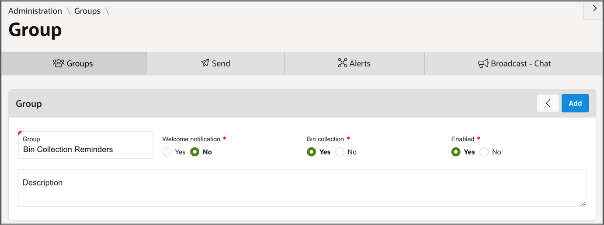
Go to Administration > Groups and click ‘add’ to create a notification group. Give the group a clear name that customers can recognise that this is the name they will see when choosing a group to join.
For collection reminders, set ‘bin collection’ to yes. You can also configure a welcome notification; this is sent when a customer first joins the group.
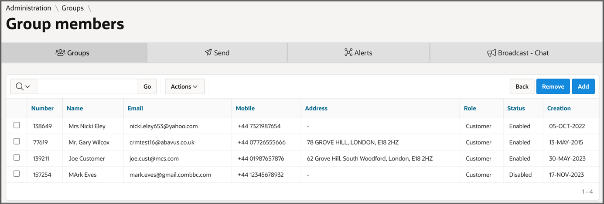
Under Administration > Groups you also have the option to view the current members of existing groups by clicking the members icon.

Scheduling Notifications
Once the group has been created, you can navigate to Administration > (Notifications) Send to schedule your collection reminders. This screen will also display a full list of sent and unsent notifications to notification groups within the system.
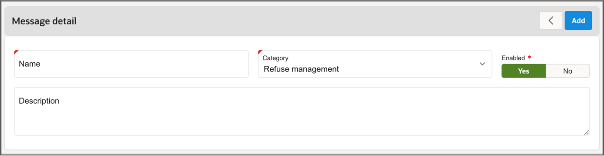
Click ‘add’ to create a new notification. Start by entering a name and selecting ‘refuse management’ as the category, then complete the remaining fields described below.
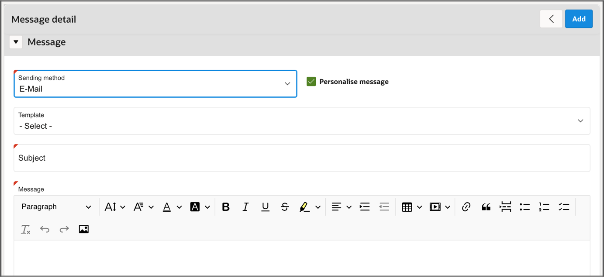
Next, enter the content of the notification. This can be done using templates.
The next step is to configure the details of what round the notification relates to, and who will receive the notification.
For collection reminders, select both residents and admins as recipients. The recipient options also allow you to select residents only or admins only.
Choose whether to notify all relevant people in the group for the selected round or only those on a particular street. Use the street-specific option for issues affecting only that area.
Select the bin group as the notification group, then select the collection type and round for the notification. Check that the selected round matches the collection type before continuing.
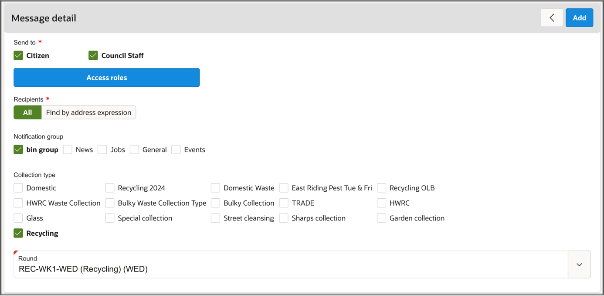
Choose whether to send the notification immediately or schedule it for later. To schedule it, set ‘schedule’ to yes and choose the date for the initial notification. For a repeating notification, click ‘add schedule’ and configure the repeat frequency.
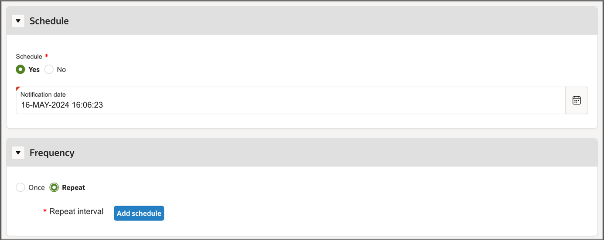
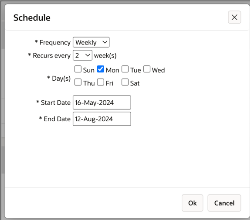
Before scheduling, check the notification content, recipient options, street selection if used, notification group, collection type and round. Confirm the initial notification date and any repeat frequency.
For a scheduled notification, click the schedule button in the top-right corner. The notification will be sent automatically on the specified date to group members with the relevant collection type selected, according to the recipient, round and street options you chose.

Adding residents and joining the notification group
To add a resident to the notification group, open the Community module and go to the resident’s profile. Click manage groups, then select the notification group and the required collection types.
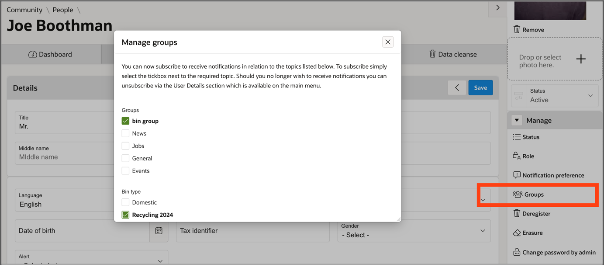
Residents with an existing account can join the group through the customer portal: open their profile and choose the option to manage their groups. Residents creating a new account are also given the option to join groups during sign-up.
Was this article helpful?
That’s Great!
Thank you for your feedback
Sorry! We couldn't be helpful
Thank you for your feedback
Feedback sent
We appreciate your effort and will try to fix the article