Contents
Introduction
About this guide
This guide explains how to create a room booking setup so that submitters can book a time slot for a room asset.
Pre-Requisites
Before the Room Booking Item can be created, the following prerequisites must be configured.
Asset Category, Sub-Category and Further Category
Firstly, go to Administration > Assets > Category.
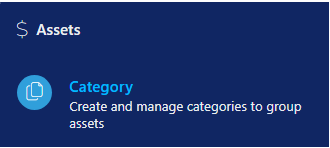
After this, click on ‘Add’ to add a new category. You will be met with the following menu:
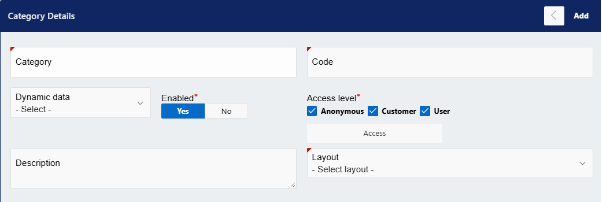
You are required to give the category a name and a code. After this has been set, you can proceed by clicking on the add button.
Creating Asset Sub-Categories
After creating an Asset Category, you can add a subcategory to that category.
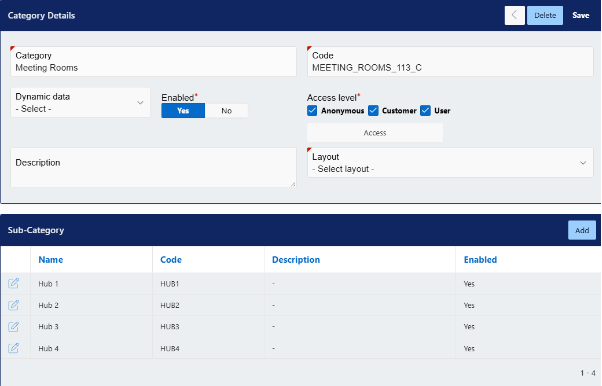
Like Categories, you will need to add a name and code for your subcategory. You can then set the asset information from the following options:
- Attribute
- Cemetery
- Certification or assessment
- Highways
- Housing
- Lighting
- Manufacture
- Part
- Tree
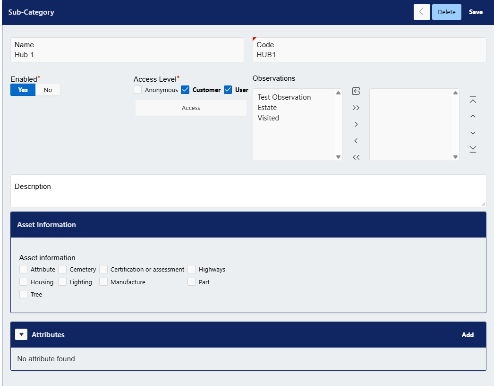
If you do not require asset information, then you can leave this section unticked and click on the ‘Add’ button.
Creating Further Categories
After a subcategory has been created, a further category can then be added within the subcategory.

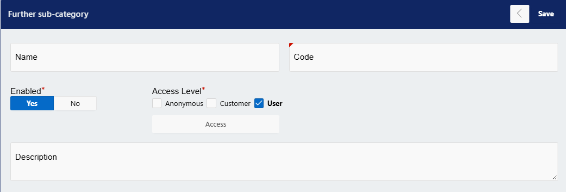
Like the other category types, you will then need to provide the further category with a name and code:
Creating the Asset
Now that the Asset Categories have been created, go to Assets > Add to create an asset. Select the category and subcategory that you created, then set a name and status for the Room Asset.
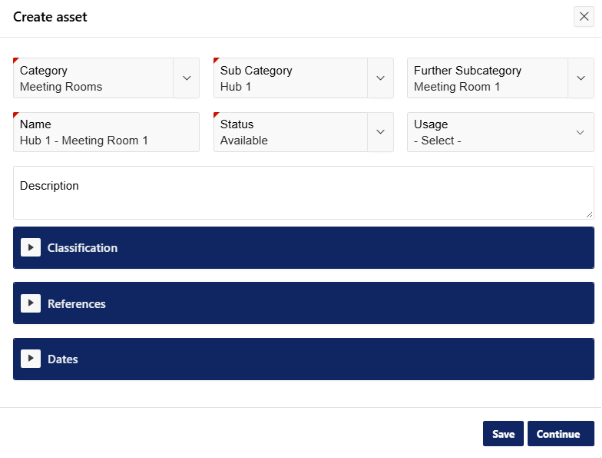
Once done, click "Add". Alternatively, click "Continue" if you want to add optional details, such as the asset’s location.
Room Layout
Before creating the Room Booking Item, you need to create a room layout; this will allow you to create and book different room layouts / shapes.
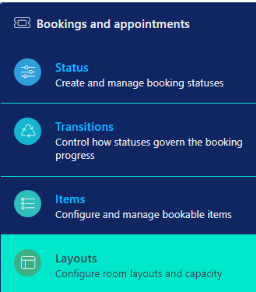
To do this, go to Administration > Bookings and Appointments > Layouts
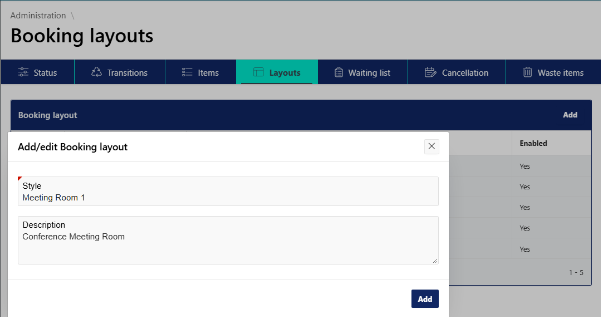
Click on ‘Add’ in the top right, then name the style based on the room. Add a description of the room’s layout / purpose and click ‘add’.
Booking Statuses and Transitions
As with all types of bookings, booking statuses and a booking transition must be configured before a room booking item can be created.
Creating Booking Statuses
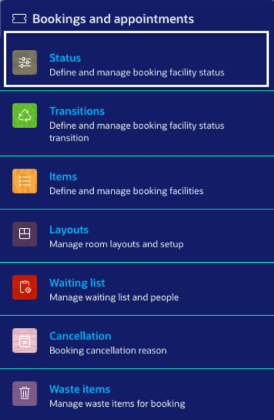
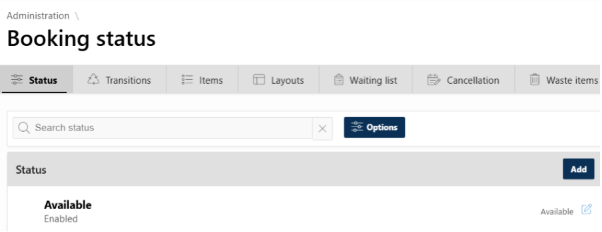
Firstly, booking statuses need to be configured. Go into Administration > Bookings and Appointments > Status
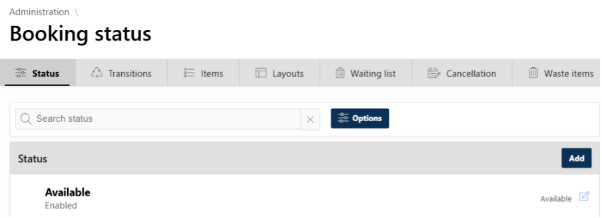
The following screen will appear. Click ‘Add’ to create a new Booking Status.
Now, you will need to create the following four Statuses that indicate different stages in a Booking Transition:
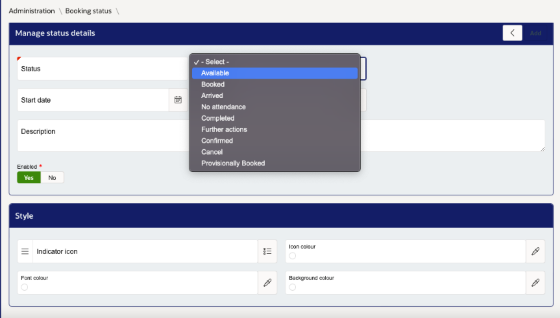
Status Type AVAILABLE - This is the Status that shows a Booking slot is available. When setting up a Transition, this Status should be held under "Initial status".
Status Type CANCEL - This is the Status that informs the system that a Booking has been cancelled. The system will free up the previously reserved Booking Slot. When setting up a Transition, this Status should be held under "Cancel status".
Status Type CONFIRMED - This is the Status that informs the system that a Booking is being made. The system will lock the user's chosen Booking Slot for up to 15 minutes before submission. When setting up a Transition, this Status should be held under "Reserved status".
Status Type BOOKED - This is the Status that shows a Booking Slot has officially been booked. The system will not allow the Slot to be booked by anyone else unless the Booking is cancelled. When setting up a Transition, this Status should be held under "Confirmed status".
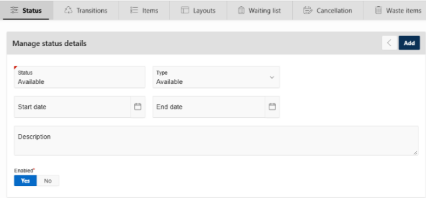
Click on ‘Add’ once you are done:
Creating Booking Transitions
Once you have the four Statuses mentioned above, go into Administration > Bookings and Appointments > Transitions
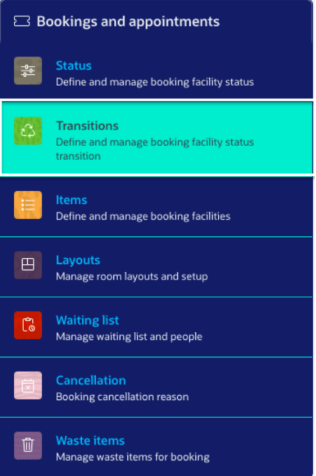
Click on ‘Add’ to create a transition
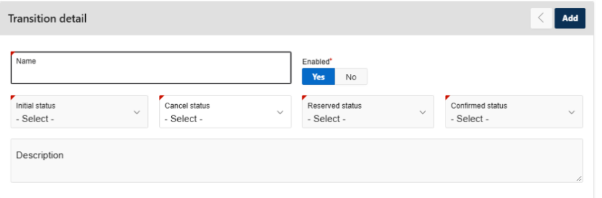
Here, you will need to create the Transition before you can configure it. Give the Transition an appropriate Name and then add the four Statuses as you have configured above.
Click on ‘Add’ once you are done.
The screen will refresh, and you will now have access to further configurations. Scroll to the bottom of the page, where you can add the possible transitions. It is recommended that you set up the following to ensure a smooth Booking Transition process:
1) Initial status > Reserved status
2) Reserved status > Confirmed status
3) Reserved status > Cancel status
4) Cancel status > Initial status
5) Confirmed status > Cancel status
Once you have added these rows, click the ‘Save’ button on the transition region, then scroll up to click the ‘Save’ button in the top right corner.
Booking Item
Creating the Room Booking Item
Now that the prerequisites have been configured, you can create the room booking item.
Go to Administration > Bookings and Appointments > Items
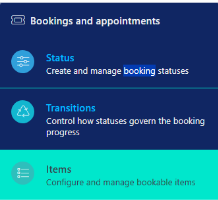
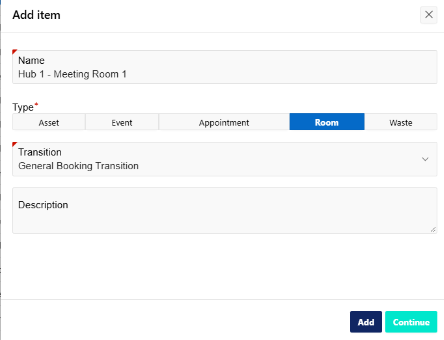
Click on ‘add’ on the top right, type a name, and select ‘Room’ as the Booking Item type.
Select the transition that you configured earlier, and then click ‘Continue’.
Facility Menu
Once the Booking Item has been created, you can use the Facility Menu to configure the following settings:
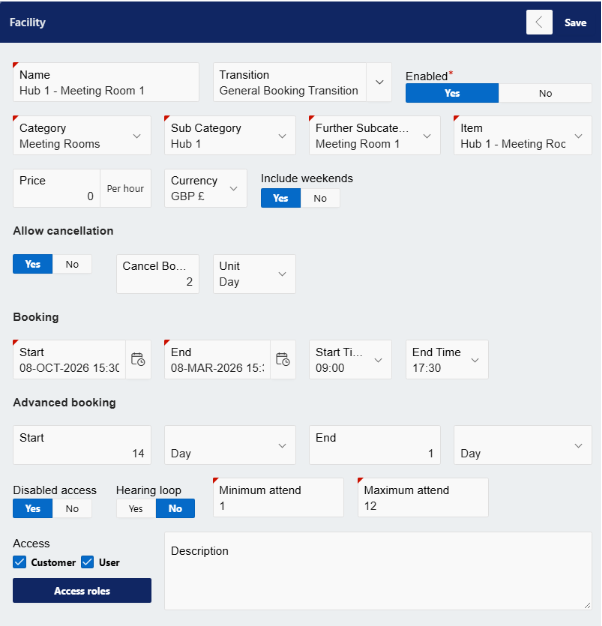
Category, Subcategory and Further Subcategory – Select the categories that were configured previously
Item – Select the Booking Item
Price – If this room costs money to book, set a price and currency here.
Include Weekends – If this is enabled, this booking item will be able to be booked on weekends.
Allow Cancellation – Enabling this is recommended and allows submitters to cancel a booking.
When cancellation is enabled, you can set how long before the booking the submitter is allowed to cancel. For example, if this is set to 2 days, the booking can be cancelled up to 2 days before the appointment.
Booking – Set the Start and End date that this room will be available for booking
Advance Booking – These settings dictate how early and late a booking can be made for a particular day. For example, having an Advance Booking Start of 14 days will allow you to book the room up to 14 days in advance.
The Advance Booking End shows how late you can make a booking.
For example, an End of 1 day allows submitters to book with 1 days’ notice.
Disabled Access – You can add here whether the room is accessible to the disabled.
Hearing Loop – If a room has a hearing loop system, enable this setting.
Minimum / Maximum Attend – This sets the minimum and maximum number of attendees allowed for each booking.
Access – Configuring access control on the booking item will dictate who can and cannot see this booking item.
Adding Room Layout
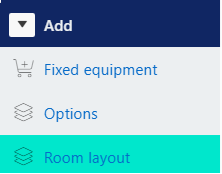
If you would like to add a room layout to the Room Booking Item, go to Add > Room Layout
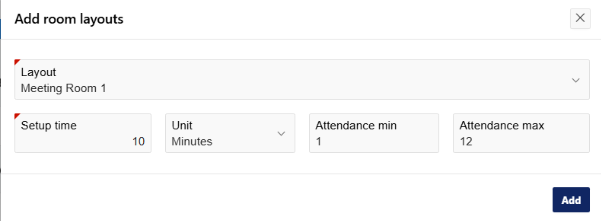
On the following page, select the previously configured layout, and configure a set-up time.
If applicable, also configure the minimum and maximum attendance for this room layout.
Once you have configured the booking item, click ‘Save’.
Configuring Room Booking Form
Linking the Item to a Form
Now that the Room Booking Item has been configured, you will now be able to link it to a form.
Go to Administration > Service Request and Case > Forms Builder
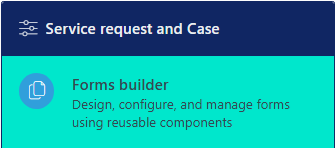
Select, or create the Room Booking Form. If you do not know how to search for or create a form, please consult our Forms Builder User Guide.
Create a new item on the page / region that you want the submitter to book the room on.
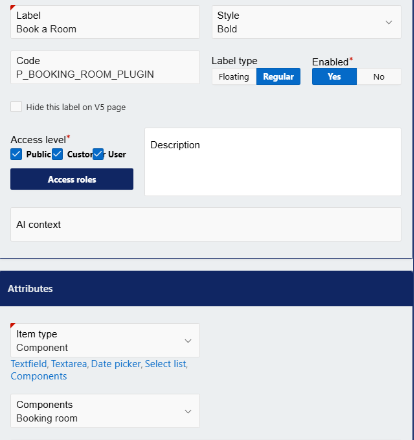
Name the item and assign the item type as Component. Set the Component to ‘Booking Room’ and then ensure that the item code is the following:
P_BOOKING_ROOM_PLUGIN
Then, scroll down to reveal the advanced settings:
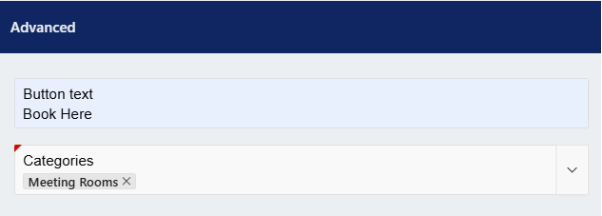
The button text will dictate what the submitter sees and must click on to open the Room Booking component.
Select the category of the Room Booking Item that you have created.
Finally, click on ‘Add’ at the top right and ensure that the item code is set to P_BOOKING_ROOM_PLUGIN.
Form Submitter’s Experience
When using the form, submitters will be prompted to enter their requirements, including booking date, duration and more.
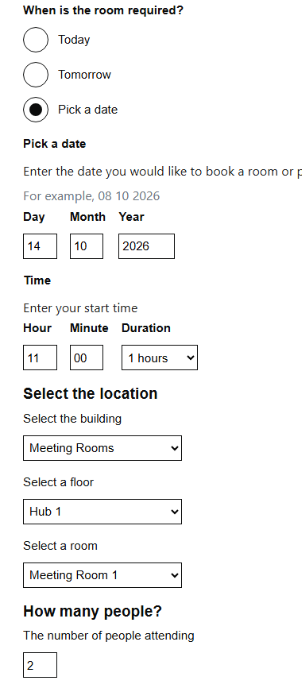
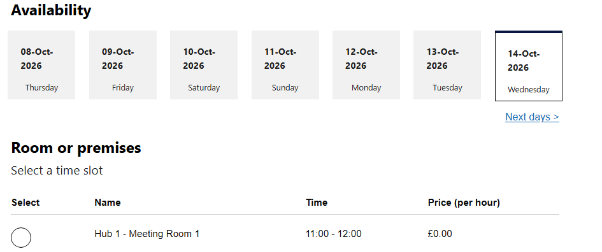
Clicking ‘View Availability’ will then open a page where submitters can select a time slot for the booking
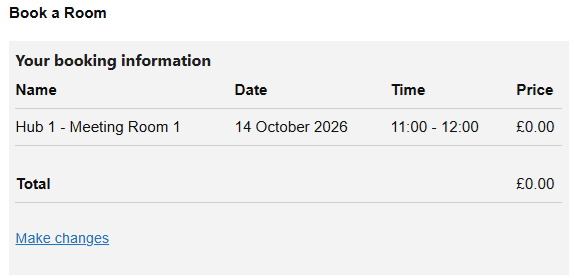
They can then click ‘continue’ to confirm the booking
Was this article helpful?
That’s Great!
Thank you for your feedback
Sorry! We couldn't be helpful
Thank you for your feedback
Feedback sent
We appreciate your effort and will try to fix the article