TABLE OF CONTENTS
- Configuration overview
- Configuring FOI statuses
- Configuring status transitions
- Configuring categories
- Creating an FOI template
- Configuring template information
- Configuring template functions
- Adding standard tasks and checklists
- Viewing template configuration history
- Configuring the FOI request form
- Reporting and dashboards
Configuration overview
Before an FOI template or submission form is made available, the System Administrator should configure the relevant:
- Categories and subcategories.
- Statuses.
- Status transitions.
- FOI template.
- Template availability and access.
- Template functions.
- Standard tasks and checklists.
- Service Request form and FOI plugin.
- Deadline rules and indicators, where configurable.
- Reporting and dashboard requirements.
The complete configuration should be tested before it is made available to staff or members of the public.
Configuring FOI statuses
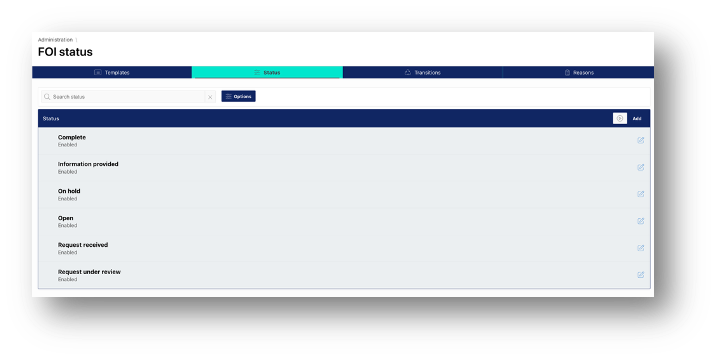
Open the status administration area
Go to: Administration > Freedom of Information > Status
The Status area allows the System Administrator to:
- Add a new status.
- View existing statuses.
- Edit existing statuses.
Add or edit a status
Select the appropriate option to add a new status or edit an existing status. Statuses should represent the stages through which an information request will progress.
Configuring status transitions
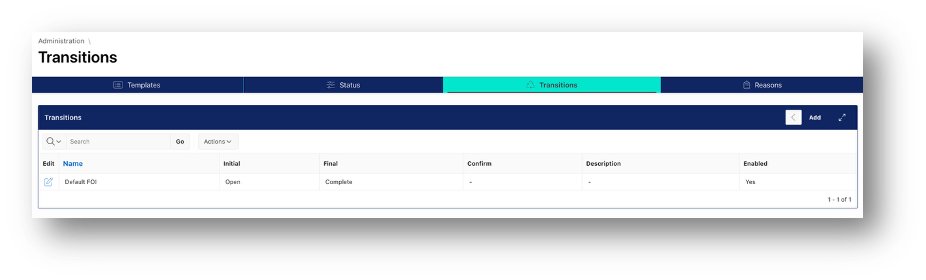
Open the transition administration area
Go to: Administration > Freedom of Information > Transitions
The Transitions area allows the System Administrator to:
- Add a new transition.
- View existing transitions.
- Edit existing transitions.
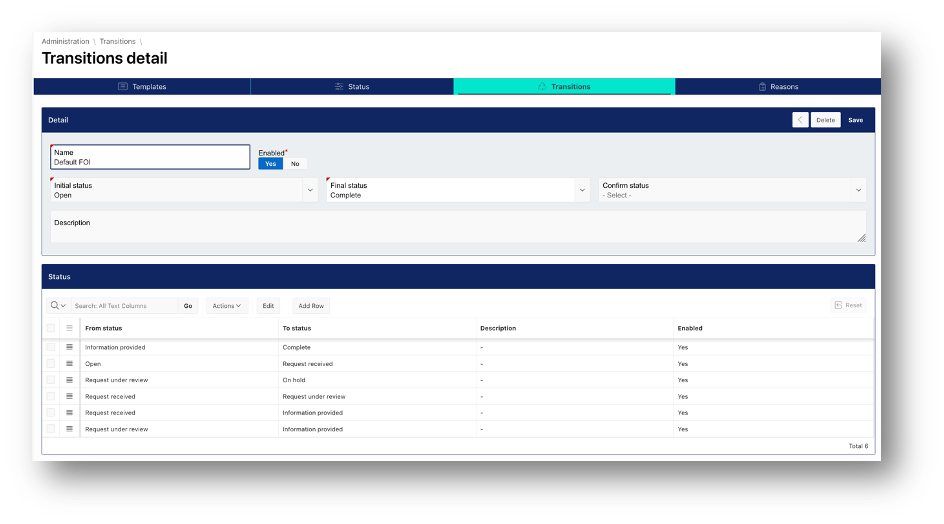
Define the status lifecycle
The transition lifecycle determines how a request can move between configured statuses. Create the required transitions and check that users can progress a request through the intended lifecycle.
Configuring categories
Categories
Categories are used to classify information requests. The source guide identifies predefined categories including:
- Schools.
- Environmental Information Regulations.
- Corporate complaints.
It also states that other categories may be added through a development request.
Subcategories
Subcategories provide further classification and can be used to route requests to relevant business teams. The source guide states that default subcategories are available and that additional subcategories may require a development request.
Creating an FOI template
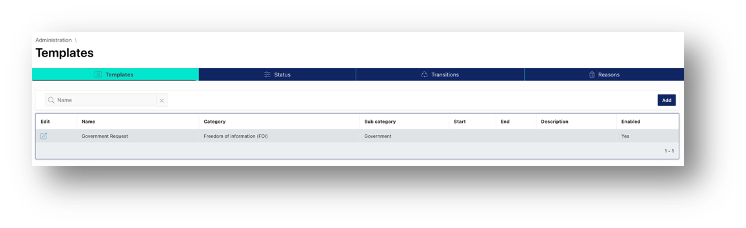
Open the template administration area
Go to: Administration > Freedom of Information > Templates
From the Templates area, the System Administrator can:
- Add a new template.
- View an existing template.
- Edit an existing template.
- Select Add to create a template or Edit to update an existing template.
Template purpose
A template defines how requests of a particular type are created and managed. A template can include:
- Category and subcategory.
- Availability dates.
- Status transition lifecycle.
- Access settings.
- Enabled or disabled state.
- Processing options.
- Standard tasks.
- Checklist items.
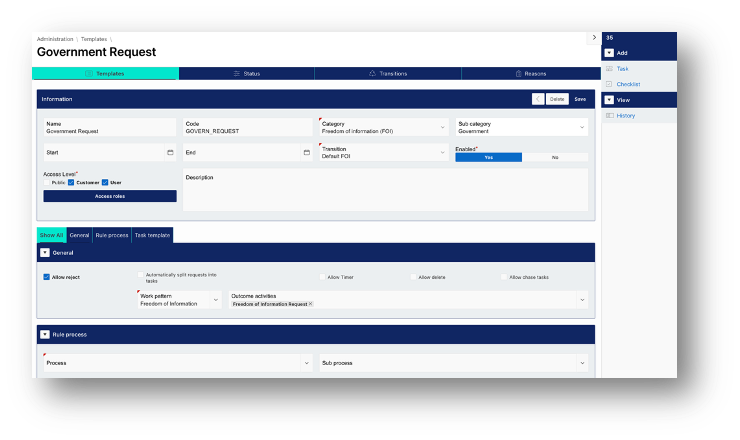
The correct template is also important for applying the appropriate request process and deadline rules.
Configuring template information
Complete the available fields in the template’s Information region.
Name
Enter the name of the template. Use a clear and recognisable name that reflects the type of request the template supports.
Category
Select the appropriate category from the prepopulated list.
Subcategory
Select a subcategory where applicable.
Start and end dates
Enter the start and end dates during which the template should be available. The source guide states that these dates are optional.
Transition
Select the status transition lifecycle that should apply to requests created from the template.
Access level
Select the required access level for the template. The source identifies access options relating to users, the public and customers.
Enabled
Enable the template when it is ready to be used. Disable it when it should not be available for use.
Configuring template functions
The General region contains options that control the functions available for requests created from the template.
Allow reject
Enable Allow reject to make the refusal function available for requests created from the template.
Automatically split requests into tasks
Enable Automatically split requests into tasks to allow tasks to be generated automatically based on the content of the request. If this option is disabled, users must create tasks manually.
Allow timer
Enable Allow timer to allow users to record time spent against the request.
Allow delete
Enable Allow delete to make the Delete action available to authorised users for requests created from the template. This option should be enabled only where the authority’s retention, audit and access requirements permit deletion.
Allow chase tasks
Enable Allow chase tasks to allow outstanding tasks to be chased.
Chase tasks periodically
Use Chase tasks periodically to set the period after which an automatic reminder should be issued for an outstanding task.
Adding standard tasks and checklists
The template’s Add menu can be used to add standard tasks and checklist items.
Add a task
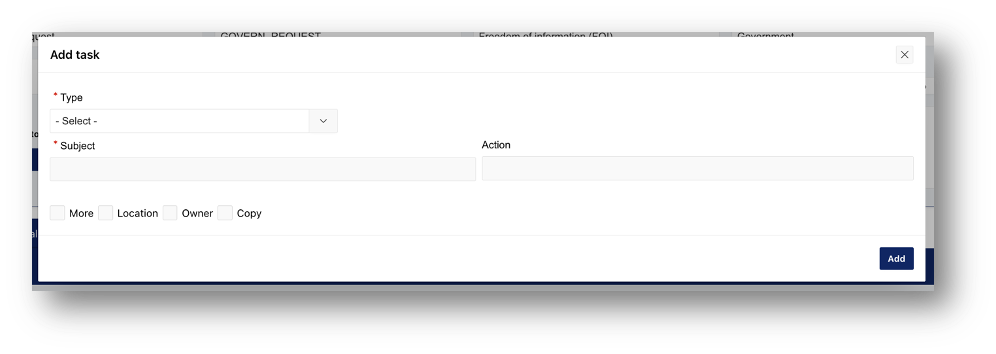
Add > Task. Use this option to add a task to the FOI template. The task will apply to requests created using that template.
Add a checklist item
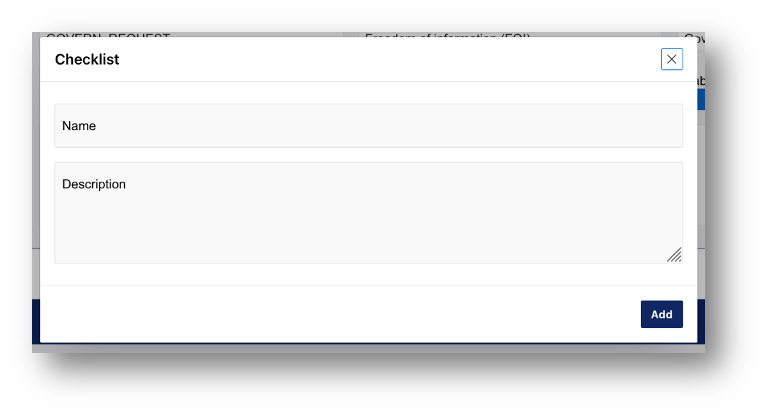
Add > Checklist. Use this option to add a checklist item to the FOI template. Checklist items can be used to identify standard processing activities that should be considered for each request created using the template.
Viewing template configuration history
View > History. Use this option to view the timeline of changes made to an FOI template. This is the configuration history of the template. It is separate from the history of an individual information request.
Configuring the FOI request form
Add the FOI component
The ability to submit an FOI request is added to a Service Request form using the Freedom of Information component item.
Go to: Administration > Forms Builder > Add Item
Add the Freedom of Information component item to the required form.
Select the FOI template
Open the plugin settings and select the FOI template that should apply to requests submitted through the form. Check that the selected template has the correct:
- Category and subcategory.
- Transition lifecycle.
- Access level.
- Tasks and checklist items.
- Processing options.
- Request type and associated deadline behaviour
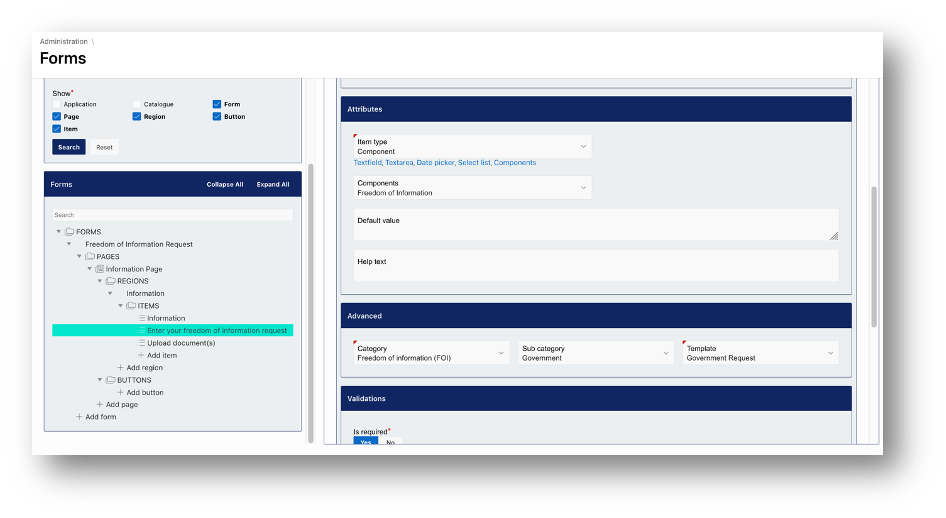
Configure the form category
The source guide identifies the following location: Administration > Forms Builder > Item > Advanced
Configure the required category through the component’s advanced settings.
Changing the template after submission
An FOI User can change the template of a submitted request through the Information module where required. Instructions are provided in Section Change the FOI template. Changing the template may affect the calculated due date. The request details and deadline should therefore be checked after the change.
Reporting and dashboards
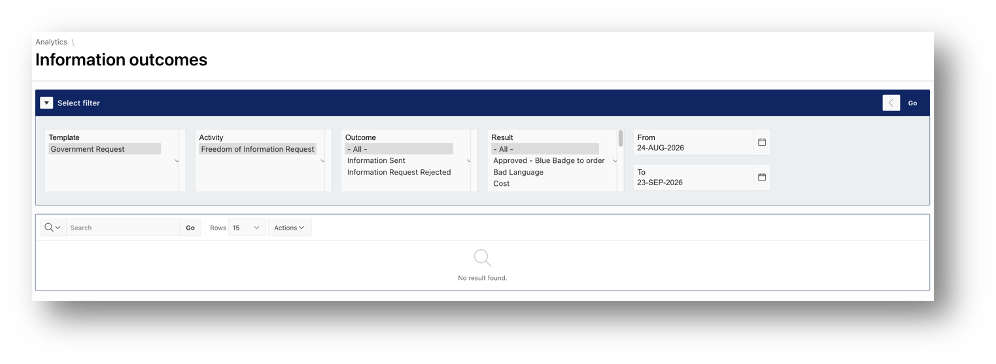
The FOI module includes reporting and dashboard functionality to support the monitoring of information requests. Depending on the organisation’s reporting configuration, reports may be used to review:
- Request volumes.
- Requests by service area.
- Open and in-progress requests.
- Requests awaiting clarification.
- Requests that have passed their due date.
- Refused requests.
- Request outcomes, including requests granted in full.
- Performance over a selected reporting period.
The identified reporting requirements included volumes, breaches, clarification, refusal status, outcomes and reporting by service area. A requirement was also raised for related service areas or departments to be viewed together.
Review a dashboard
Open the relevant FOI dashboard to view the available request information. Use the available reporting filters to refine the information by criteria such as:
Reporting period.
- Service area.
- Request status.
- Request outcome.
- The filters and fields available depend on the dashboard configuration.
Reporting by service area
Service-area reporting can be used to review request volumes and outcomes across different parts of the organisation. Where a service-area hierarchy or multi-selection option is available, users may be able to review related departments together rather than selecting each department individually.
Deadline and breach reporting
Deadline reporting should use the due date held against each request. A request should be treated as overdue only after 23:59 on its due date. This prevents a request from being reported as breached while it remains within the permitted response period.
Accurate reporting depends on:
- The correct request template being selected.
- The correct received date being recorded.
- The correct due-date calculation being applied.
- Any permitted extension being recorded.
- The request status being maintained.
- The request outcome being recorded.
Request outcome reporting
Where outcome information is recorded, reports may be used to distinguish between configured outcomes, including:
- Granted in full.
- Refused.
- Awaiting clarification.
- Other configured outcomes.
The available outcomes depend on the organisation’s FOI configuration and reporting design.
Was this article helpful?
That’s Great!
Thank you for your feedback
Sorry! We couldn't be helpful
Thank you for your feedback
Feedback sent
We appreciate your effort and will try to fix the article