Introduction
What is a Finance Reconciliation Report?
The Finance Reconciliation Report details the payment statuses of each payment attempt made against a Service Request (SR) through your 3rd party payment provider.
Payment statuses are standard across each system. The payment status of an SR is separate from the statuses of the Service Request.
Integration with a 3rd party provider is typically a re-direct request. Therefore, there is a reliance on the appropriate notifications being received to process the Service Request. For instances where notifications of the payment have not been received from the 3rd party payment provider, the report allows the submission of the Service Request if necessary.
Report Filters
How do I filter the Report?
Firstly, go to Analytics > Finance Reconciliation. Once you are here, there are two steps for filtering results:
1. By Category - From the Filter, select the Payment Gateway and Category. You will need to select questions(s) and select the appropriate date range. Click on ‘go’ to search.
2. By Service Request - enter a Service Request number and click on ‘go’ to search.

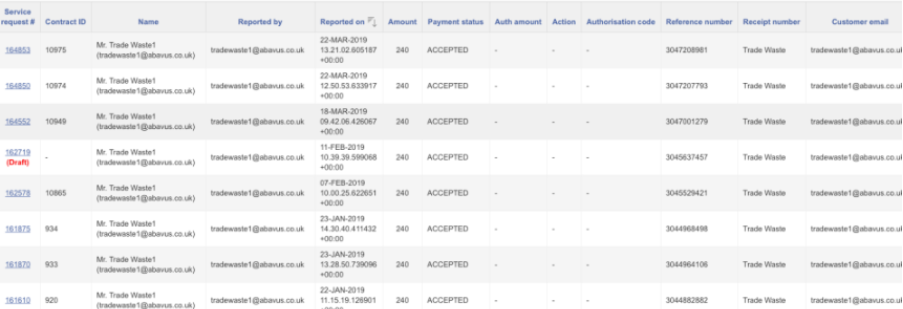
Columns such as Reference Number and Receipt Number are populated according your to 3rd party payment provider. The report can be further manipulated using the Actions button.
Payment statuses
About Payment Statuses
Payment statuses are pulled from a third-party Payment Supplier and determines the condition of a payment. A Service Request may have more than one recorded payment transaction, due to the Customer/User attempting a Payment more than once.
Payment Status Summary
The Payment Statuses shown on the Reconciliation Report are as follows:
CONFIRMED
The payment has been taken successfully.
A successful notification has been received from the payment provider.
The User/Customer is redirected back to the MCS Form.
The Service Request (SR) is submitted successfully.
FAILED
The payment has failed (e.g. incorrect card details, insufficient funds, or provider rejection).
An unsuccessful notification has been received from the payment provider.
The User/Customer is redirected back to the MCS Form.
The Service Request is not submitted.
TRANSFERRED
The User/Customer has been redirected to the third‑party payment provider’s site.
No payment notification has been received by MCS.
This can occur where the User/Customer:
Successfully completes payment but does not return to MCS (e.g. closes the browser or navigates away), or
Does not complete payment (or payment fails) and is not redirected back to MCS.
In all Transferred scenarios:
The Service Request is not submitted.
FAILED_TO_CONFIRM
The initial payment request has been successfully passed to Civica via a web service call.
The User/Customer is redirected back to MCS, indicating that a payment has likely been completed.
On redirect, MCS makes a second API call to validate the transaction / authorisation code returned by the payment provider.
This validation checks that the payment is secure and confirmed, with the result stored in the QueryAuth table.
A FAILED_TO_CONFIRM status occurs when:
The confirmation API does not return a successful validation, or
The expected transaction / authorisation value is not available in QueryAuth at the time of checking.
This may happen due to:
Temporary unavailability of the confirmation API, or
Timing delays, where the QueryAuth record has not yet been created when the validation call is made.
In this state:
The payment may have been taken successfully by the provider,
However, MCS cannot securely confirm the transaction,
Therefore, the Service Request is not submitted.
You will need to run this report for each Category on a regular basis and then view the payment statuses to display and review any errors.
Note:
A Service Request will only be submitted when its payment status is [CONFIRM].
Service Requests with a [TRANSFERRED], [FAILED], or [PAYMENT ABORTED] status will not be visible in the system and are not saved as ‘Drafts’. They will only become visible if a subsequent transaction results in a [CONFIRM] status. These can be viewed in Analytics.
Processing Failed Payments
About Payment Processing
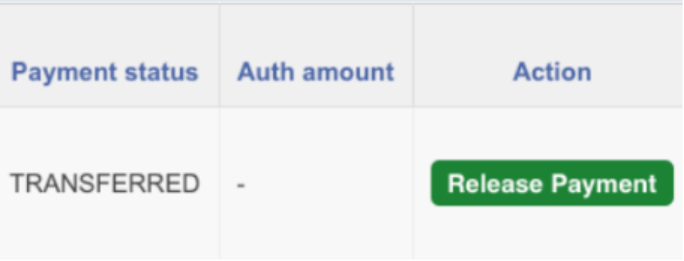
It is recommended that any [TRANSFERRED] transactions should be checked via your 3rd party payment provider to confirm that the payment has been taken successfully or not. You are likely to have a mixture of failed and successful payments in your payment system.
These can be processed manually, so that the actual status of the payment can be updated in your system to confirm whether the payment has been taken or not.
Note:
The ‘Release Payment’ action will need to be added to your payment integration at
the point of develop, as it is not configured by default.
If the payment is successful and the status is [TRANSFERRED], select the button and enter a ‘Receipt Number’ (your 3rd party payment provider reference), and a response code of [0]. Once done, the payment status will update to [CONFIRM], and the SR will submit.
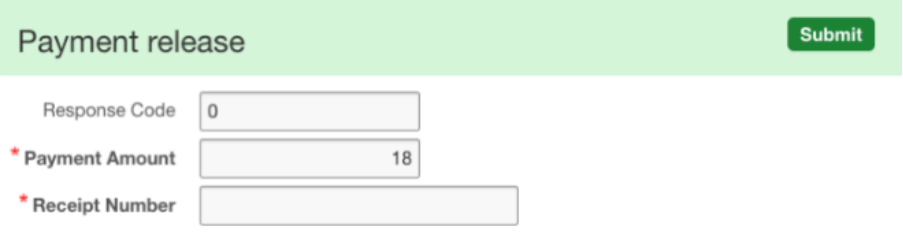
If the payment is unsuccessful, select the button and enter a ‘Receipt Number (your
reference in Capita), and a ‘Response Code’ of [>0]. Once this is done, the payment status will update to [FAILED], and the SR will not be submitted.
It is unlikely that you will need to look at [FAILED] or [PAYMENT ABORTED] payments as part of your weekly checks, as this will be for audit purposes only.
Was this article helpful?
That’s Great!
Thank you for your feedback
Sorry! We couldn't be helpful
Thank you for your feedback
Feedback sent
We appreciate your effort and will try to fix the article