Introduction
About this guide
This guide has been written to provide information about the reporting capabilities of MCS, and what reports and analytics can be derived from the system.
Dashboards (Task & Service Dashboards)
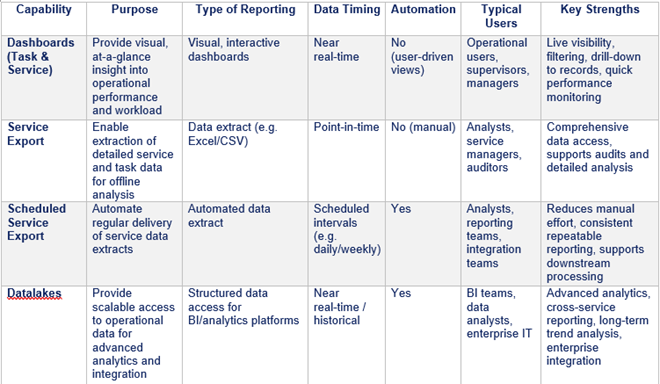
Dashboards provide real‑time, visual insight into operational activity across services and tasks. They present key metrics such as volumes, status, performance, and trends in configurable views. Enhancements allow filtering, drill‑down into underlying records, and direct navigation from summary metrics into detailed task or service data, enabling both operational users and managers to quickly monitor performance and identify issues.
Key value: At‑a‑glance operational visibility with interactive drill‑down for investigation and decision‑making.
Service Export
Service Export allows users to extract detailed service data from the platform for offline analysis or external reporting. Exports can include a wide range of fields (including custom fields) and support different data sets depending on service configuration. Enhancements improve flexibility, performance, and data completeness, making exports suitable for audits, statutory reporting, and advanced analysis in external tools such as Excel or BI platforms.
Key value: On‑demand access to comprehensive service data for audit, analysis, and reporting outside the platform.
Scheduled Service Export
Scheduled Service Export extends the standard export capability by enabling automated, recurring data extracts. Exports can be configured to run at defined intervals (e.g. daily, weekly) and delivered automatically, removing the need for manual intervention. This supports consistent reporting, data reconciliation, and integration with downstream systems or reporting processes.
Key value: Automated, repeatable data delivery that reduces manual effort and ensures consistent reporting.
Datalakes
Datalakes capability provides direct, structured access to operational data for advanced analytics and integration scenarios. Data is made available in a format suitable for enterprise BI, analytics, and data science tools, enabling cross‑service reporting, historical trend analysis, and integration with wider corporate data platforms.
Key value: Enterprise‑grade data access for advanced analytics, strategic insight, and system integration.
One‑line comparison
- Dashboards: Real‑time operational visibility
- Service Export: Manual extraction of detailed data
- Scheduled Export: Automated, recurring data extracts
- Datalakes: Scalable access for enterprise analytics and BI
Dashboards
Service Request
Service dashboard provides comprehensive analytics dashboard providing an overview of all submitted service requests, complete with associated information. The presentation incorporates visual aids, such as pie charts, graphs, and pyramids.
To access the latest dashboard, login with your user credentials and go to dashboard module from the right-side menu. Then, click on Dashboard page region.
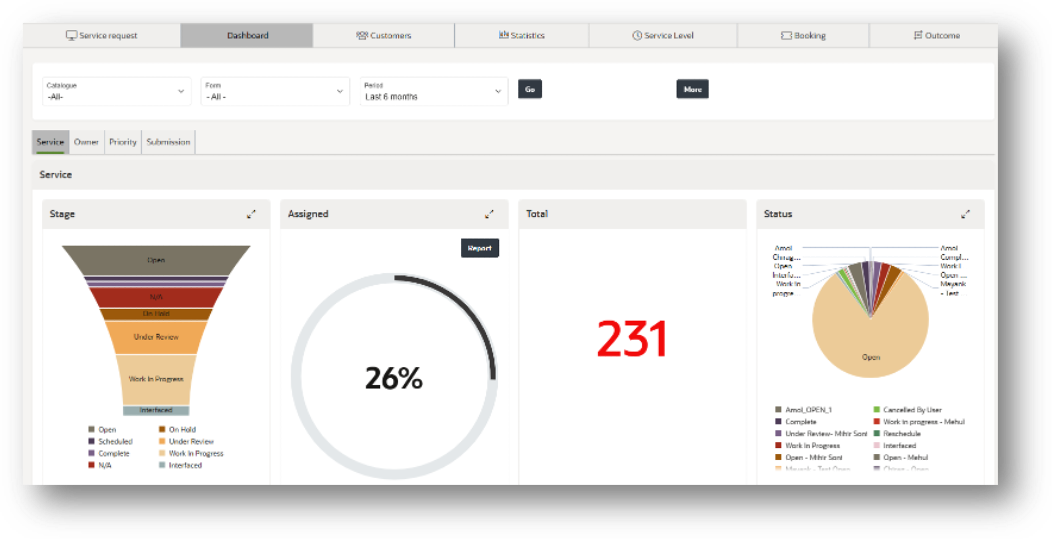
Select Catalogue, Form, Period and click on Go to load the all the latest data for the selected period:
Service Section
In the Service section, you can view some sub-sections such as Stage, Assigned, Total and Status, described below:
Stage: It will reflect the stage of service requests in terms of percentage as per their status.
Assigned: It will reflect the percentage of service requests assigned to owners.
Total: It will reflect total number of submitted service requests.
Status: It will represent the service requests as per their status along with owners.
Owner Section
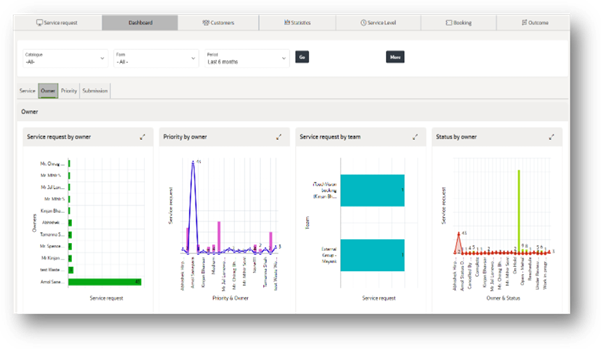
In the Owner section, you can view service request by owner, priority by owner, service request by team and status by owner.
Service request by owner: It will reflect the total number of requests assigned to the respective owners.
Priority by owner: It will show service requests set on priority by respective owners.
Service request by team: It will represent the total number of service requests submitted by different teams.
Status by owner: It will show status of service requests assigned to respective owners.
Priority Section
In the Priority section, you can view service request by priority, stage by priority and channel by priority:
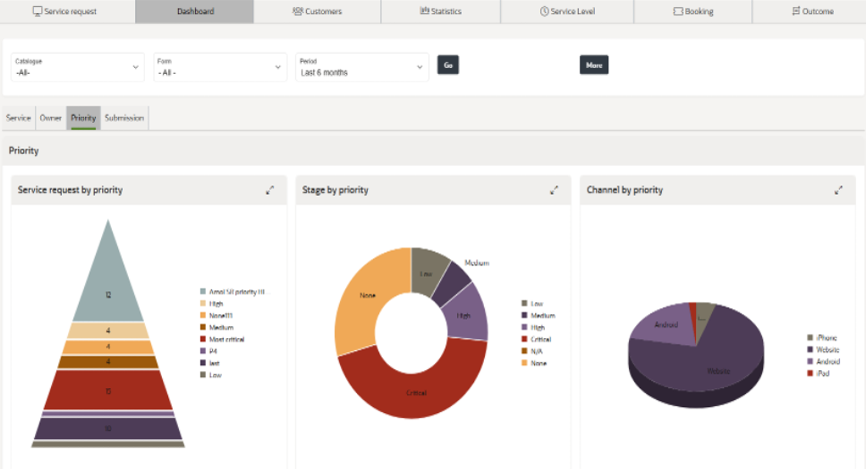
Service request by priority: A pictorial representation of service requests by priority
will be visible in this segment.
Stage by priority: The stage of the service requests will be displayed according to their priority.
Channel by priority: Popular channels will be visible here based on their priority order such as website, android, iPhone and iPad.
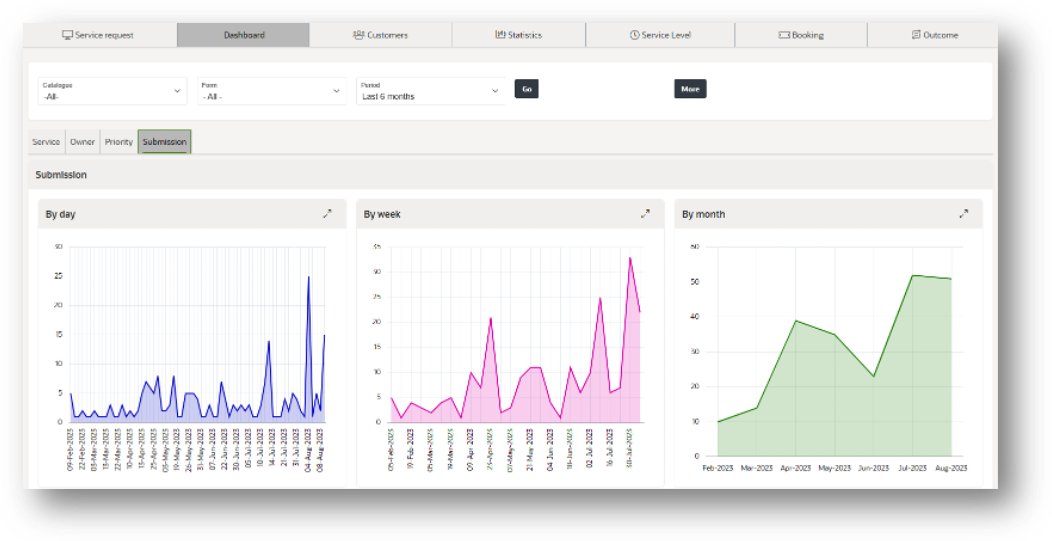
Submission Section
In the Submission section, you can view statistics regarding submitted requests on the daily, weekly and monthly basis.
Task Request
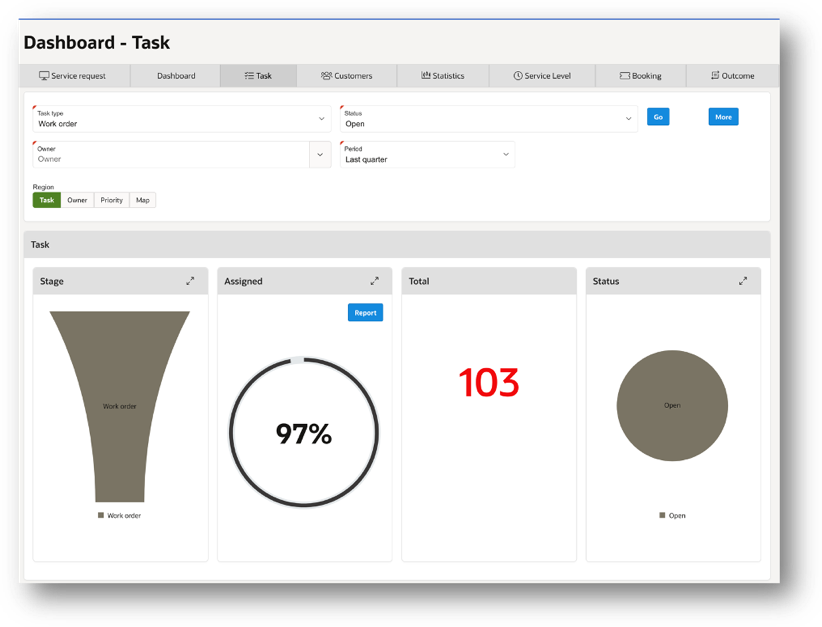
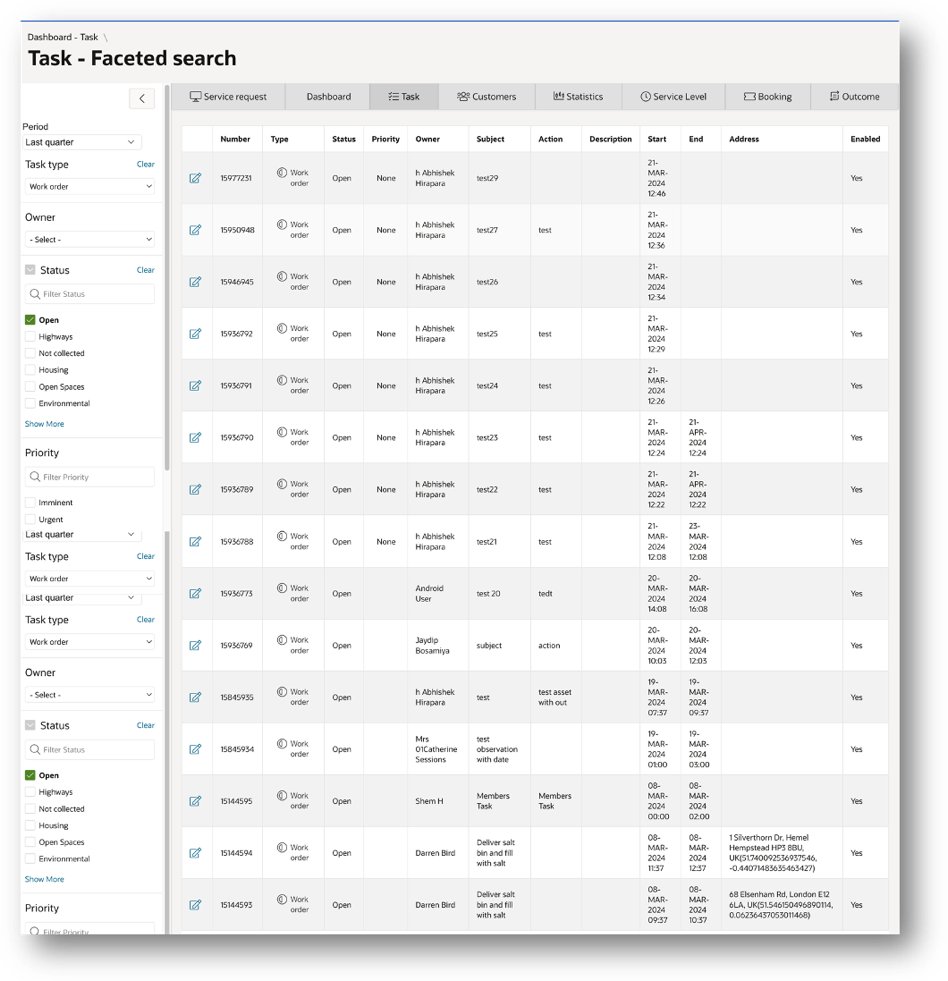
The Task Dashboard gives a visual representation of Task analytics for reporting purposes. To view this, navigate to Dashboard tab > Task
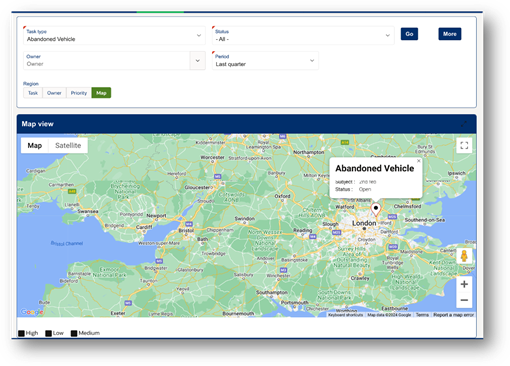
The administrator can set the filter criteria on task type, status, owner and period to see the results.
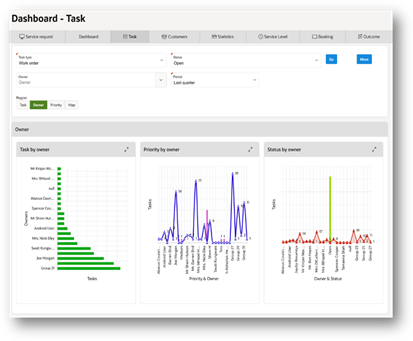
Owner – Under Owner tab, you can see the tasks, status and priority by own
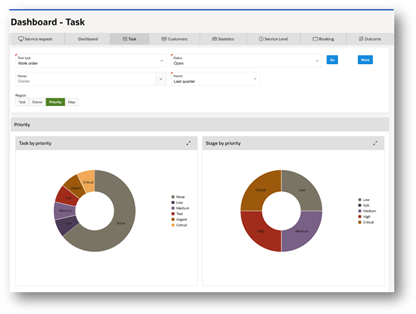
Priority – Under Priority tab, you can see the stage and task by priority
Map – Under this tab, you can see all the tasks on map as per the task location
More button – After clicking the ‘More’ button, it will take the user to a report with the task list along the search filters on left-hand side which are carried over while navigating.
Service Export
Extracting Service Information
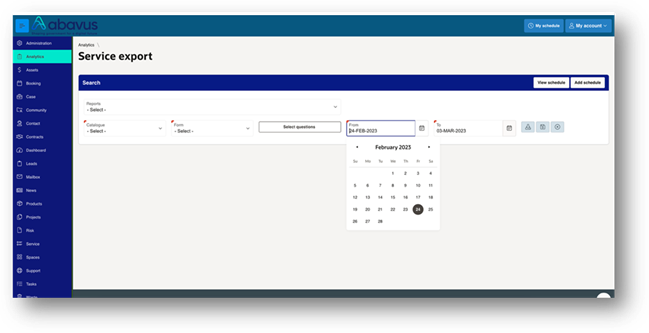
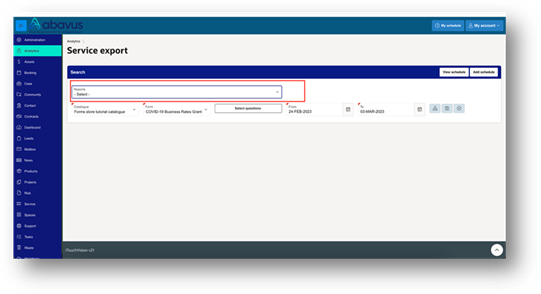
The Service Export functionality will see additional features added allowing users to select questions to be displayed from a form when the report is run, as well as the ability to create and save filters to be used. This means that all features which make up Service - Information can now be used within Service Export.
Service Export will also allow users to search within a 93-day date range, whereas the use of Service – Information permits customers to run reports for just the previous 7 days.
Select questions
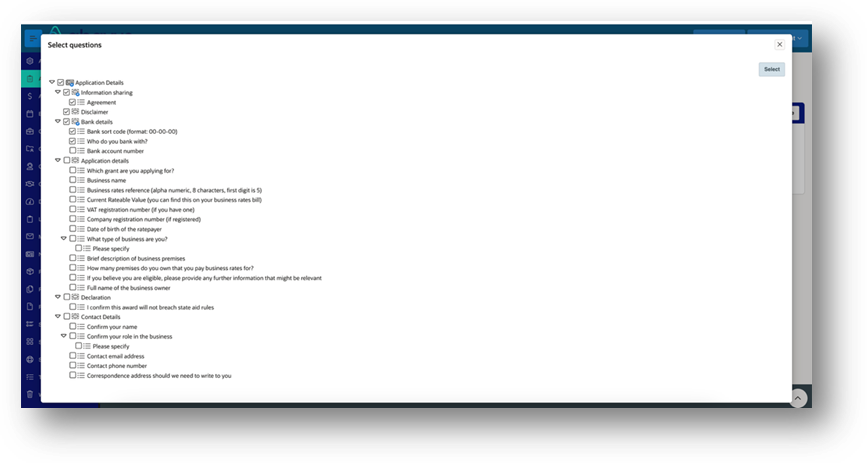
The ‘Select questions’ feature will allow users to select a range of questions from a desired form to be displayed within the analytical report.
Reports can be run without the use of this feature, however if required it can be used by selecting the relevant Catalogue and Form and then clicking on ‘Select questions’ and ticking the boxes next to the questions that the user requires to view within the resulting report.
The ability to create and save filters for use within Service Export is available to quickly extract certain types of information.
These can be created by following the below steps:
1.) Firstly, select the relevant catalogue and form, and then click on the ‘Save Filter’ icon.
2.)Then, enter a name for the filter, select the required frequency of the report, and click ‘Create’.
3.) Created filters will appear in the drop-down list allowing for quick access to a predefined schedule. You are also able to edit or delete schedules by selecting it from the list and clicking ‘save filter’.
Downloading Reports
This functionality allows the user to download the Service Export report as a CSV file for a single form.
Optional: Configure a Layout
Go to Administration > Branding > Layout
Here, configure the Layout details in the following way:
Select the Type as Service and the Sub-type as Service export
The input Layout Format must be ‘xslx’ and the output file format must be ‘csv’ type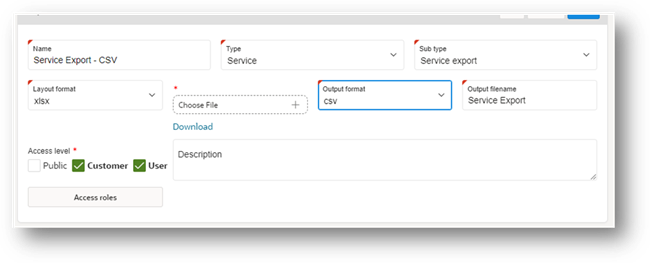
To view the sample template, click on Tags on right-hand side menu and download the file.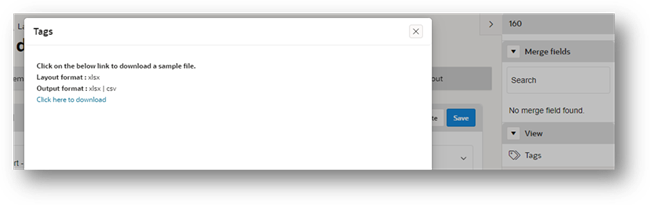
Note – The following options must be set to ‘No’ to enable downloading the CSV file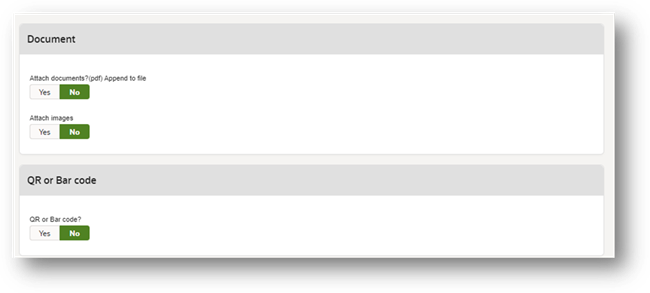
Creating a schedule for Service Export
Creating a schedule for the Service Export functionality can allow users to obtain Service Export information in an automated, routine manner.
To do this. go to Analytics > Service export
Then, click on ‘Add schedule’
Select the catalogue and only a single form, then select the appropriate layout configured as above
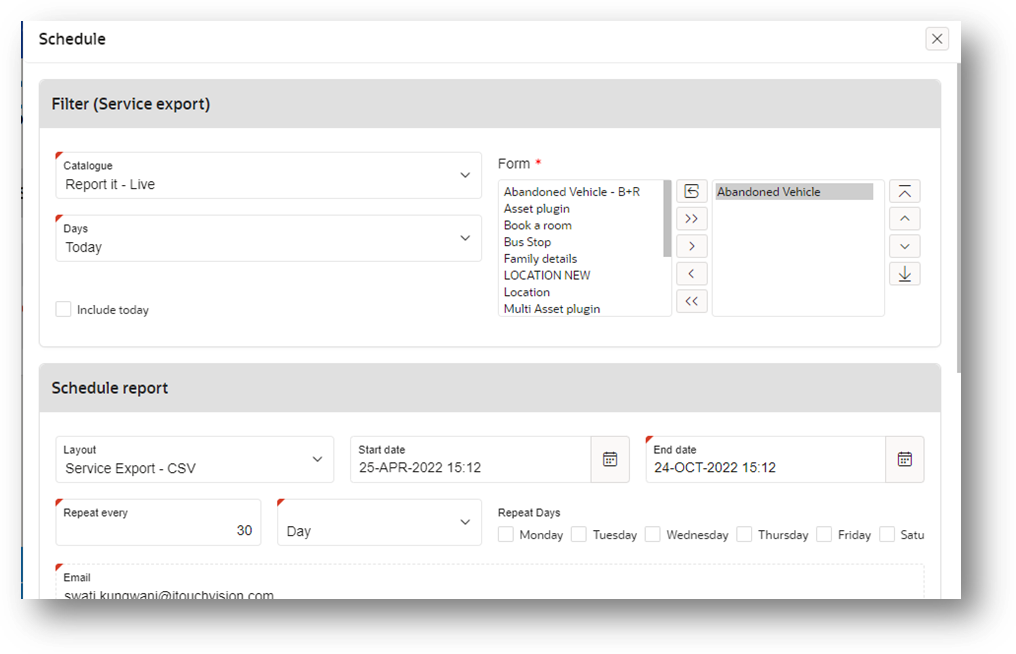
Then, schedule the report to receive the CSV file in your inbox.
Note: The user can remove the non-required fields from the xlsx file while configuring the layout. The first and the last columns should remain untouched.

Sending a Schedule Export report via email
If required, the ability to send the export report via email from Administration > Schedule Export is available.
When creating the export, you now have the option to attach to the email as shown below:
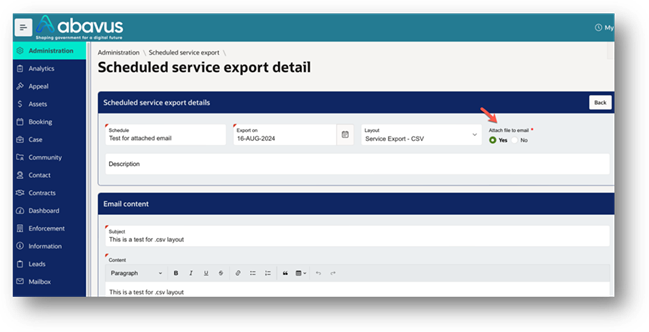
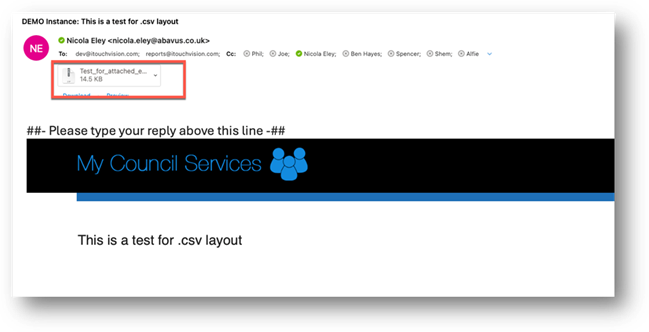
This will then output the file as an attachment and send it to the chosen mailbox.
The file output will also incorporate a date, so will include the Form name, year(s) defined in the export and then date. This will help to keep the file distinct and easily referenceable.
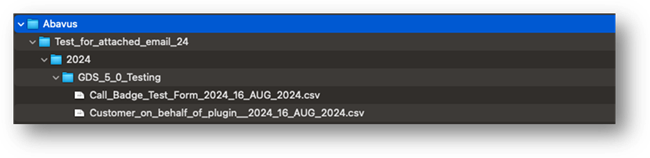
You can also export using .csv. But by default, this will export as .xlsx
If you do wish to export via .csv, then you will need to define a print layout as directed above.
Scheduled service export
The schedule export feature provides flexibility whilst exporting service reports for multiple years, forms and catalogues. To access this feature, you will need to do the following:
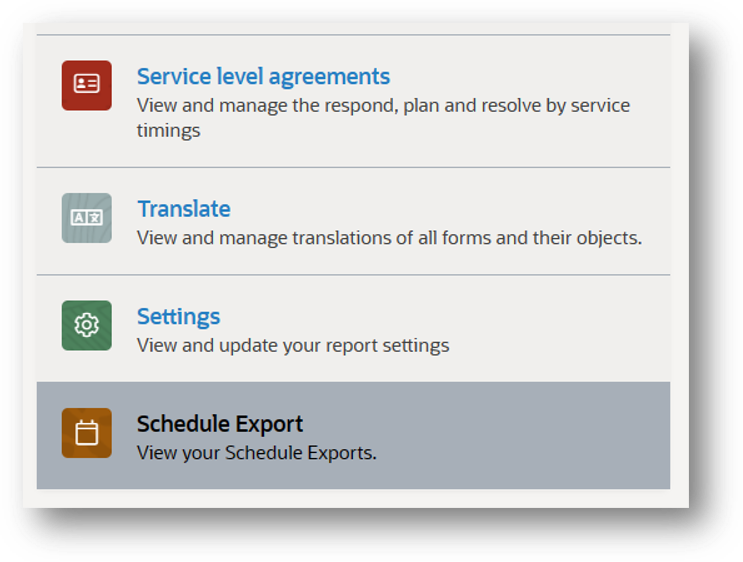
Go to Administration > Service Request and Case > Schedule Export
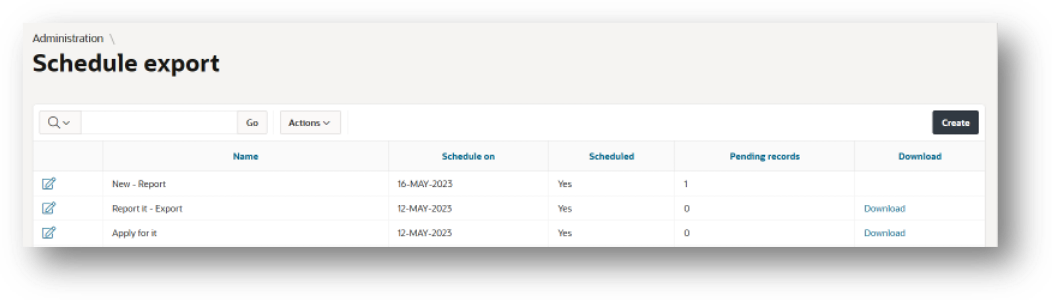
On the ‘Schedule export’ page, click on ‘Create’ and go to the next step.

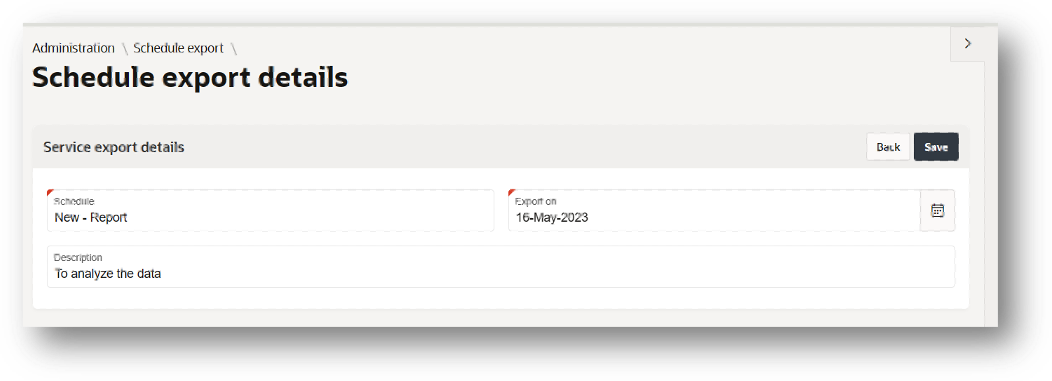
On the ‘Schedule export details’ page, you can assign a name, export date and description to the schedule. ‘Save’ the details and click on ‘Back’ for the next step.
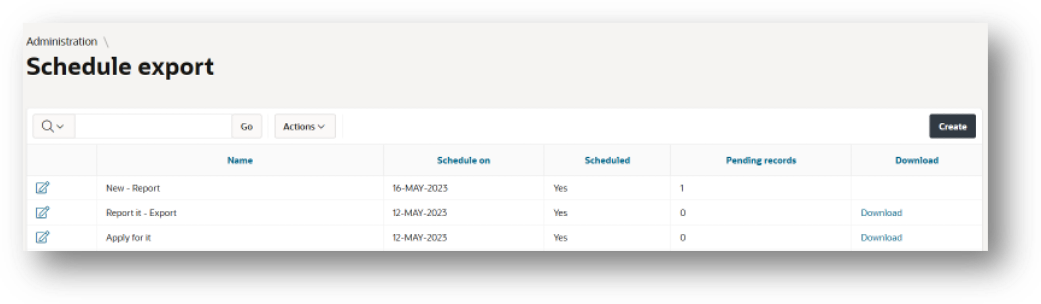
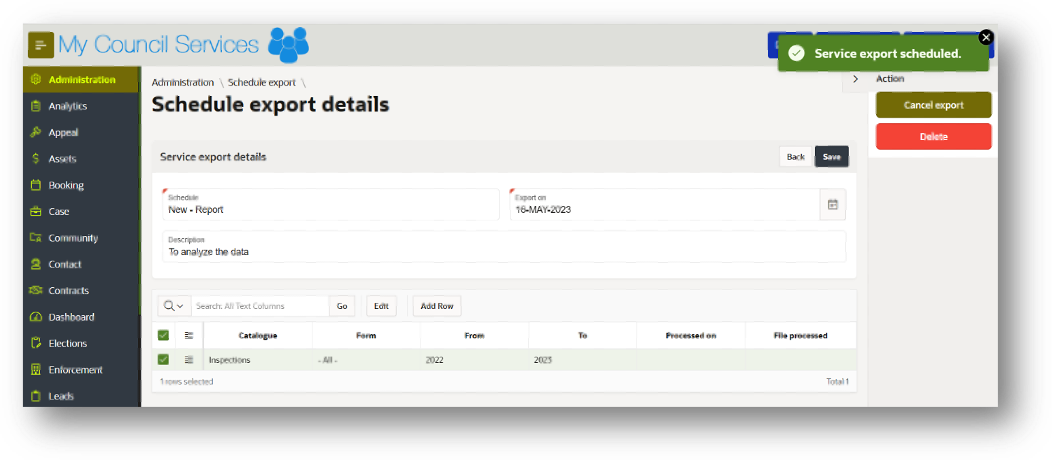
Now, edit the schedule export you just created and select details for catalogues, forms and years as needed. Click ‘Save’ to save the information and click on ‘Schedule export’. It will notify that ‘Service export scheduled’. You can also check this by going back to the ‘Schedule export’ page.
After scheduling the export, you will get a confirmation mail that your export is now ready to download. After that, go to ‘Schedule export’ page and a new ‘Download’ option will be available next to your scheduled export.
Click on ‘Download’ and all the reports will be downloaded to your device.
Your reports will be saved in a zip folder as below:
Schedule name, Year, Catalogue, Form
Was this article helpful?
That’s Great!
Thank you for your feedback
Sorry! We couldn't be helpful
Thank you for your feedback
Feedback sent
We appreciate your effort and will try to fix the article