Introduction
About this guide
Mail templates give an Organisation the ability to customise and configure how the template of emails sent from the system. Throughout this document are screenshots of each configurable option with a description to let you know what they do.
How do I configure a Mail Template?
To start configuring this, go to Administration > Mail > Template.
By default, there will be values in some of these values on system set-up. They may appear blank initially. To remove these, overtype with the required values.
Logo – The logo can be configured at the very top of the page, this allows a link to an image here which will be displayed at the top of the email. The logo height allows you to change the height of the logo.

Greeting text – Greeting text is the first line of text within the body of the email. This is usually set using dynamic fields to pull the appropriate customer data through.
Greeting text admin has the same functionality however it only applies for Admin users.

Signature – The signature is the final body of the email. You can either use dynamic fields, or you can simply type in the box.

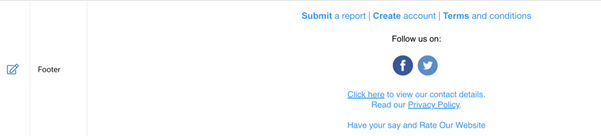
Footer – The footer is found under the signature and can be configured to allow external links, icons (HTML), privacy policy etc. Here is an example of how this could be configured:
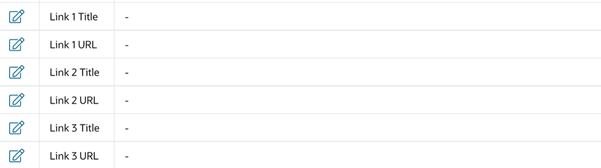
Further external links – These links can be configured to allow direct access to 3 web pages if required. Most customers will typically add social media links in here, but they can be used for any redirection required.
Support Email – You can enter your support email here to let customers know how to contact you.

Website – This is a link to your website.
Contact Us Mail – This is an email address that customers can contact you on for generic enquiries.
App Name – If you have the appropriate licence, you can enter the app name here. Where the dynamic field #APP_NAME# is used, this will be taken from this value.
Customer portal URL – You can enter the URL for the customer portal here.
Admin portal URL – You can enter the URL for the admin portal here.
Was this article helpful?
That’s Great!
Thank you for your feedback
Sorry! We couldn't be helpful
Thank you for your feedback
Feedback sent
We appreciate your effort and will try to fix the article