Introduction
About this guide
This guide has been written to explain Note Templates, and how to configure them.
Note templates are pre-configured messages that administrators can quickly add to SRs. This prevents the administrator from having to type out the same message multiple times for multiple different reports, saving time.
Configuration
Creating a Note Template
To create a note template, go to Administration > General > Templates > Note templates.
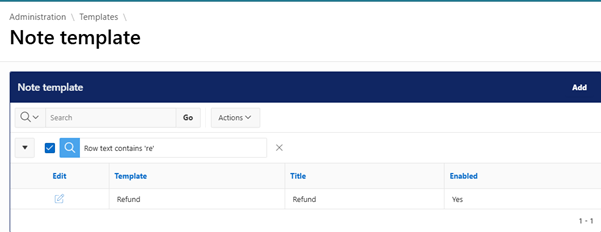
Then, click on ‘add’
Name the template and then configure it’s access levels. If you want customers to be able to see this note when it is added to a service request, tick ‘customer’.
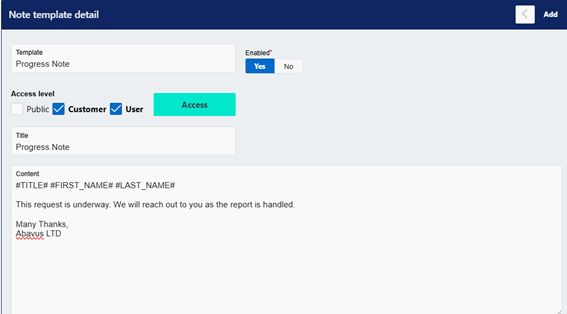
Configure a title and content for the note. To address the submitter by their name you can use the following dynamic fields:
#TITLE#
#FIRST_NAME#
#LAST_NAME#
Type out the message for this note, then click on ‘add’.
Mapping the Template to Note Types
Next, go to Administration > General > Note Types. Select or create the note type that you want to add the Note Template to.
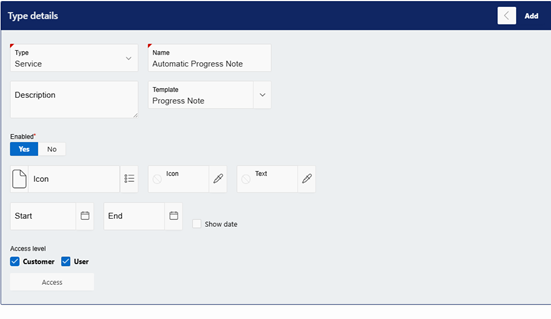
Ensure that the Type on the Note Type is set to where you want to add the note. For example, if you want to add these notes to a Service Request, select ‘service’.
Select the note template that you have just created, and ensure that ‘customer’ is enabled if you want the customer to be able to see this note when added to the Service Request. Then, click on ‘add’.
Using the Note Templates
Adding a Note using Templates
To use the Note Template, go to the area of the system in which the note type is configured for, such as Tasks, Bookings, Waste, Service etc.
For this example (a service note type) we will go to the Service Request that we wish to add the note to.
Go to Add > Note, then select the Note Type you have just configured the Note Template with:
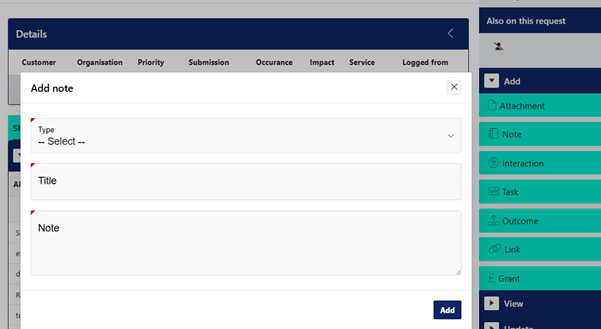
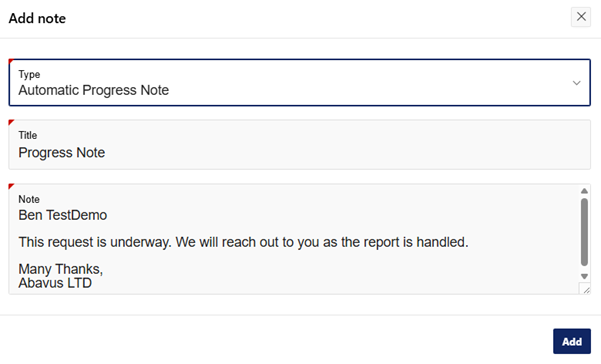
The Note Template, along with the dynamic fields (if used) will automatically print into the note.
Was this article helpful?
That’s Great!
Thank you for your feedback
Sorry! We couldn't be helpful
Thank you for your feedback
Feedback sent
We appreciate your effort and will try to fix the article