Introduction
About this guide
This guide has been written to guide users on how to effectively translate forms, including the upload of form translations as well as how to manage the form’s translations centrally.
Uploading Form Translations
How do I Upload Translations for Forms?
You can import a CSV file to accommodate the language translation for a form and its items. This is useful if another language alternative is required for your forms, such as Cymraeg, Gaeilge or Scottish Gaelic.
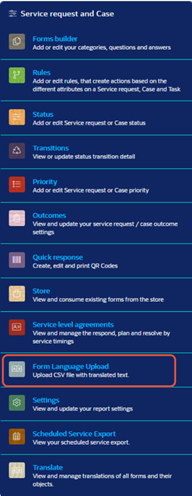
To start your upload, go to Administration > Service request and case > Form Language Upload
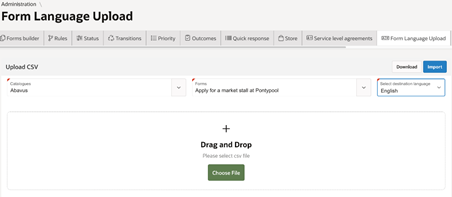
Select a Catalogue, Form, and Destination Languages then click download. This will provide a file with the existing translations/text available in the system. You can then use this downloaded file to add all the translations and then re-upload the CSV file to the system. This will map the words as per the code EN (English) and CY (Welsh).
Please note that you must upload the same CSV file with translations which you downloaded to begin the process.
While importing the translated file, it is mandatory to select the ‘Destination language’ and then it will insert/update the text of the selected language.
For example. if you download the file, add the Welsh text and then import the CSV while selecting the language as ‘Welsh’. This will enable all the entries with CY in the file to be updated.
This file will be processed into the system via a scheduler, which runs overnight.
Central Translation Management
Managing Translations
You can also manage translations centrally, allowing admin users to put in the translations for form and form objects, such as buttons.
How do I do this?
To start, Administration > Service request and case > Translate
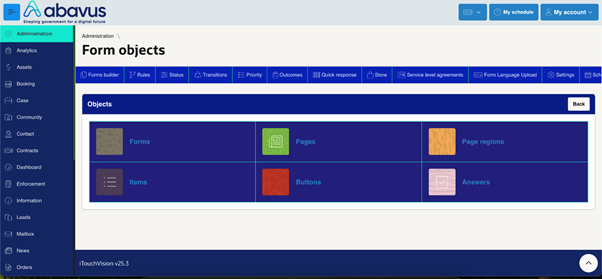
You can select from the options what form objects you would like to manage the Translations for:
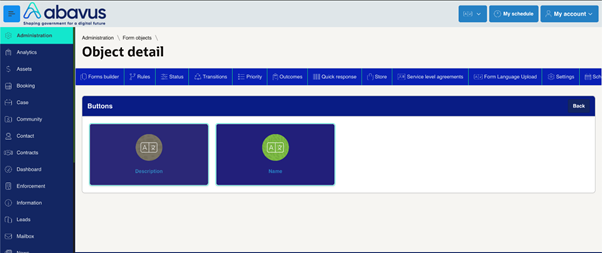
For example, if ‘Buttons’ is selected, then it will show relevant attributes of button object to be translated, such as ‘description’ or ‘name’:
Select the filter options including catalogue, form and page. Select the language and click on ‘Go’ button.
This will display all the available buttons on the selected page. The filter options will vary, depending on the Form and object.
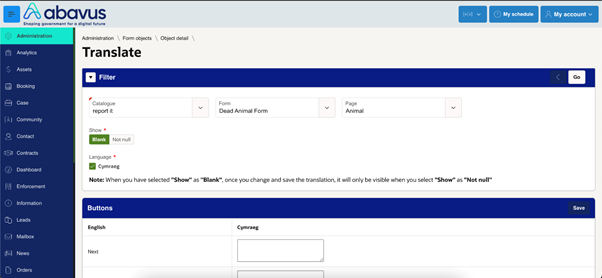
You can then put the translated text and click on ‘Save’ button. This will save the translation against the object directly.
If you need any more information on Form Translations, please let us know at iSupport@abavus.co.uk.
Was this article helpful?
That’s Great!
Thank you for your feedback
Sorry! We couldn't be helpful
Thank you for your feedback
Feedback sent
We appreciate your effort and will try to fix the article