About this guide
Who is this guide for
This guide is for council staff who configure or work with supplier contracts in the MCS platform. It covers both the setup steps for administrators and usage details for users who create, update, and maintain supplier contracts.
About the module
The Supplier Contracts module provides a central place to manage the full lifecycle of supplier agreements between the council and external suppliers. It allows users to create contracts, link budgets, assign owners, track spend, record interactions, and manage renewals or extensions in one workspace.
The module helps ensure supplier contracts are managed consistently across departments, supporting compliance, budget control, and transparency. Administrators can configure categories, frameworks, and procurement routes to match the council’s procurement policies.
Council staff can quickly view contract status, value, and renewal dates, making it easier to oversee supplier performance and keep procurement processes running smoothly.
Configuration / Setup
Pre-requisites
Before creating a supplier contract, the administrator must configure several List of Values (LOVs). These LOVs are used to prepopulate fields when creating new contracts.
Navigate to: Administration → LOVs
The following LOVs need to be configured:
- Supplier contract categories: Defines the category of the contract, such as Goods, Services, Works, etc.
- Supplier contract framework: Refers to pre-established agreements with one or more suppliers, for example OGP, EPS, or LGOPC.
- Supplier contract procurement route: Determines the method used to procure the contract, such as RFQ, Open, Restricted, DPS, etc.
- Supplier contract type: Defines the commercial pricing model, such as Fixed Price, Time & Materials, or Hybrid.

Budget (Funds)
Before creating supplier contracts, the administrator must configure the budgets (Funds) that will be allocated to them.
To create a new budget:
- Navigate to Administration → Grants → Funds.
- Click Add to create a new budget item.
- Enter the budget details, including:
- Budget size – the total amount allocated.
- Timeline – start and end dates for the budget.
- Access controls – define which users can view or manage the budget.
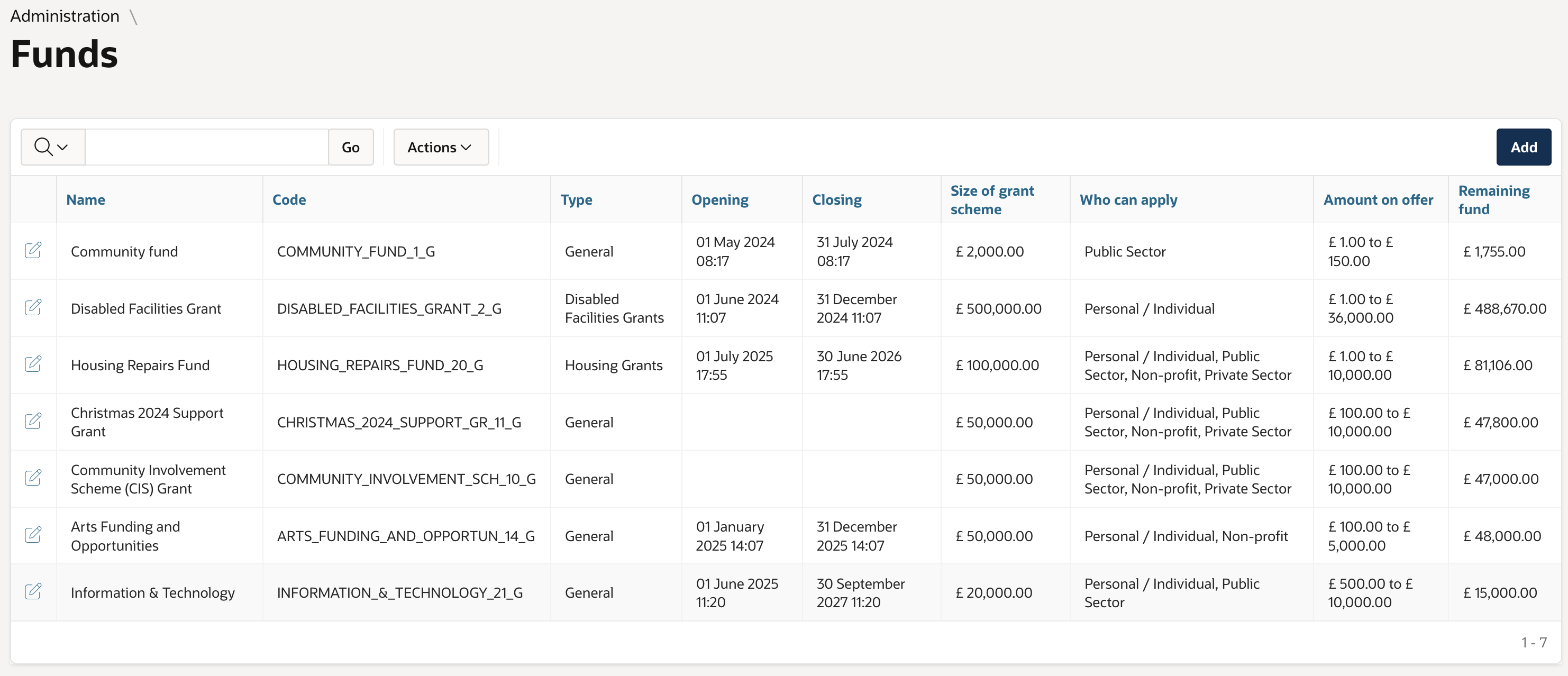
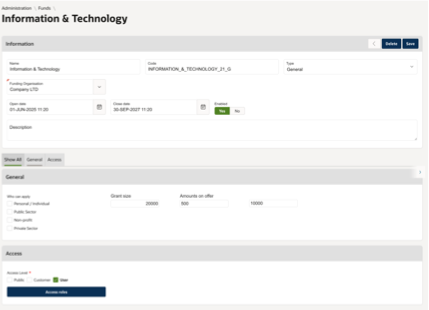
Once the budget is created, it can be linked to one or more supplier contracts as required.
Using the Module
Creating a supplier contract
Once the LOVs and budgets (POs) are configured, you can create a new supplier contract.
Steps:
- Navigate to the Supplier Contracts tab in the Administration portal.
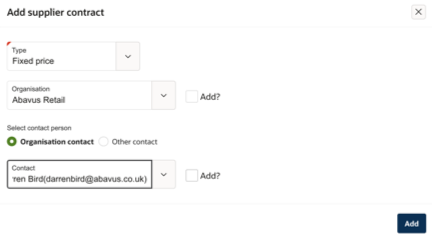
- Click Add to create a new supplier contract.
- Select the Type from the LOV list configured previously.
- Select the Organisation from the available list in the Community module, or click Add to create a new record if it does not exist.
- Select the Contact Person:
- Organisation contact – shows users associated with the selected organisation.
- Other contacts – shows all users added under Community for your council.
- Add – create a new user and map them to the organisation if needed.
Note:
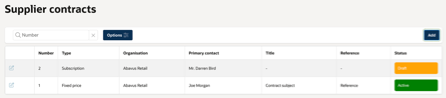
When a new supplier contract is created, it will automatically have a ‘Draft’ status.
Supplier contract details
After creating a contract, drill down to the contract details page to perform further operations:
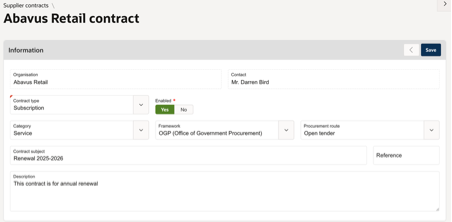
- Information region – select the contract type, category, framework, and procurement route from the configured LOVs.
- Enter the Contract Subject, Reference, and Reference Number.
Finance and legal fields
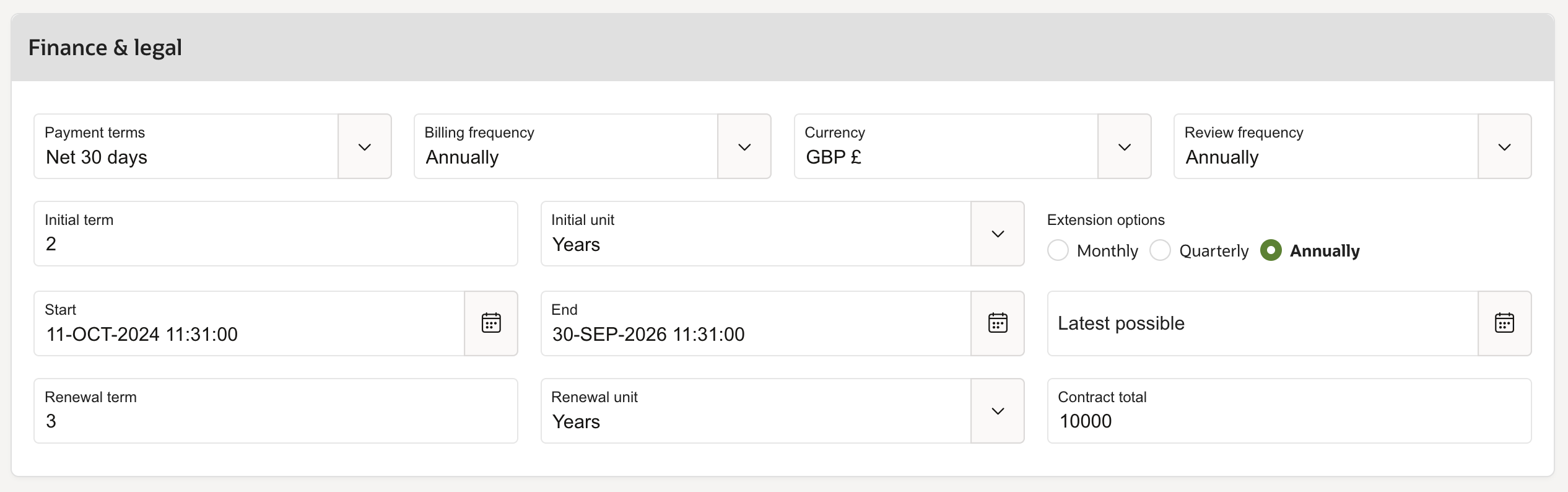
These fields define the financial and legal terms of the contract. Users can select from predefined values; any additions must be configured by the support team:
- Payment terms – specify the schedule for contract payments.
- Billing frequency – define how often invoices are issued.
- Currency – select the currency denomination for the contract.
- Review frequency – determine how often the contract should be reviewed.
- Initial term & unit – set the duration of the initial contract period.
- Latest possible – the final date a contract can be extended or renewed.
- Renewal term & unit – define the duration for any renewal period after the initial term ends.
- Start & end dates – specify the contract’s start and end dates.
- Contract total – the overall monetary value of the contract.
Contract actions
Once a contract is created, a range of actions can be performed from the right-side menu. These include:
Add:
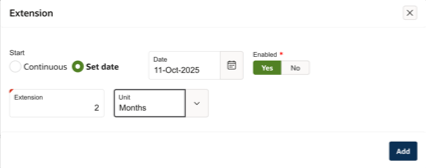
- Extension – Add an extension period to the current contract:
- Continuous – Extend immediately from the end date (e.g., 3 months, 1 month). Must stay within the ‘latest possible’ date.
- Set date – Start extension from a specific date (e.g., contract ends 1 Oct 2025; extension starts 11 Oct 2025 for 2 months).
- Document – Attach any files to the contract.
- Interaction – Record communications such as email, SMS, letter, or call.
- Task – Create and assign tasks to team members.
- Note – Add internal or public notes.
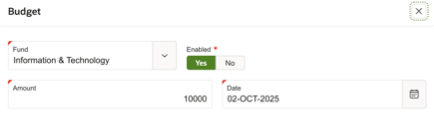
- Budget – Allocate funds from configured budgets; multiple budgets can be assigned to a single contract.
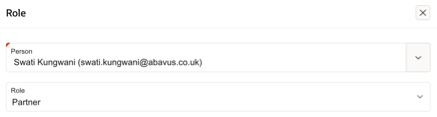
- Owner – Assign a contract owner from the user list and select their role.
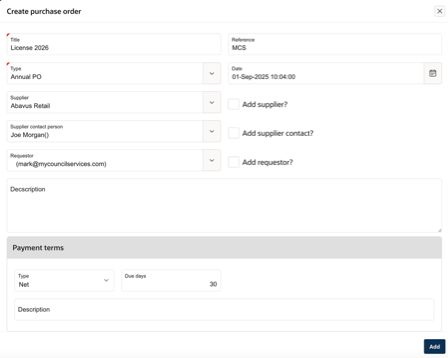
- Purchase Order – Add a PO; organisation details are prefilled, additional information can be added as required.
Update:
- Status – Change the contract status.
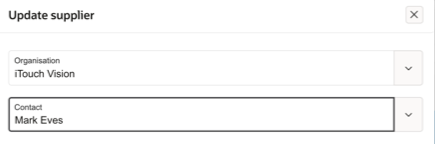
- Supplier – Update the supplier organisation if required.
Send:
- Email – Send emails using free text or pre-configured templates (configured under Administration → General → Email templates).
- SMS – Send text messages to the supplier’s mobile number.
Action:
- Print – Generate a PDF of the contract using the configured layout (Administration → Branding → Layout).
View:
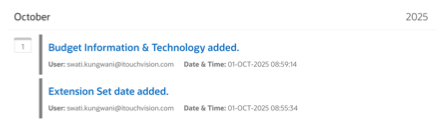
- History – See a timeline of all transactions recorded against the contract.
Delete:
- Contract – Remove the contract record.
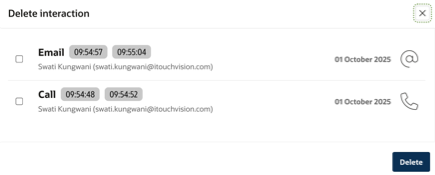
- Interaction – Delete one or more recorded interactions.
Overview region
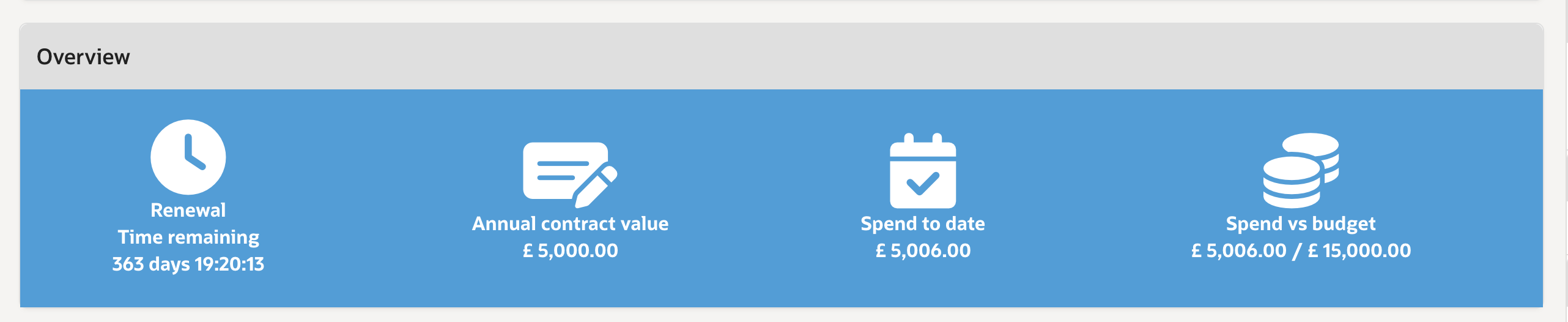
The Overview region provides a read-only summary of key contract financials (displayed with a blue banner):
- Renewal – Countdown to the next renewal.
- Annual contract value – Total contract value divided by ongoing term year.
- Spend to date – Amount spent so far, including any extensions.
- Spend vs budget – Comparison of spend to the total allocated budget.
Note:
This region is not configurable, but changes can be made by the development team if required.
Searching and filtering
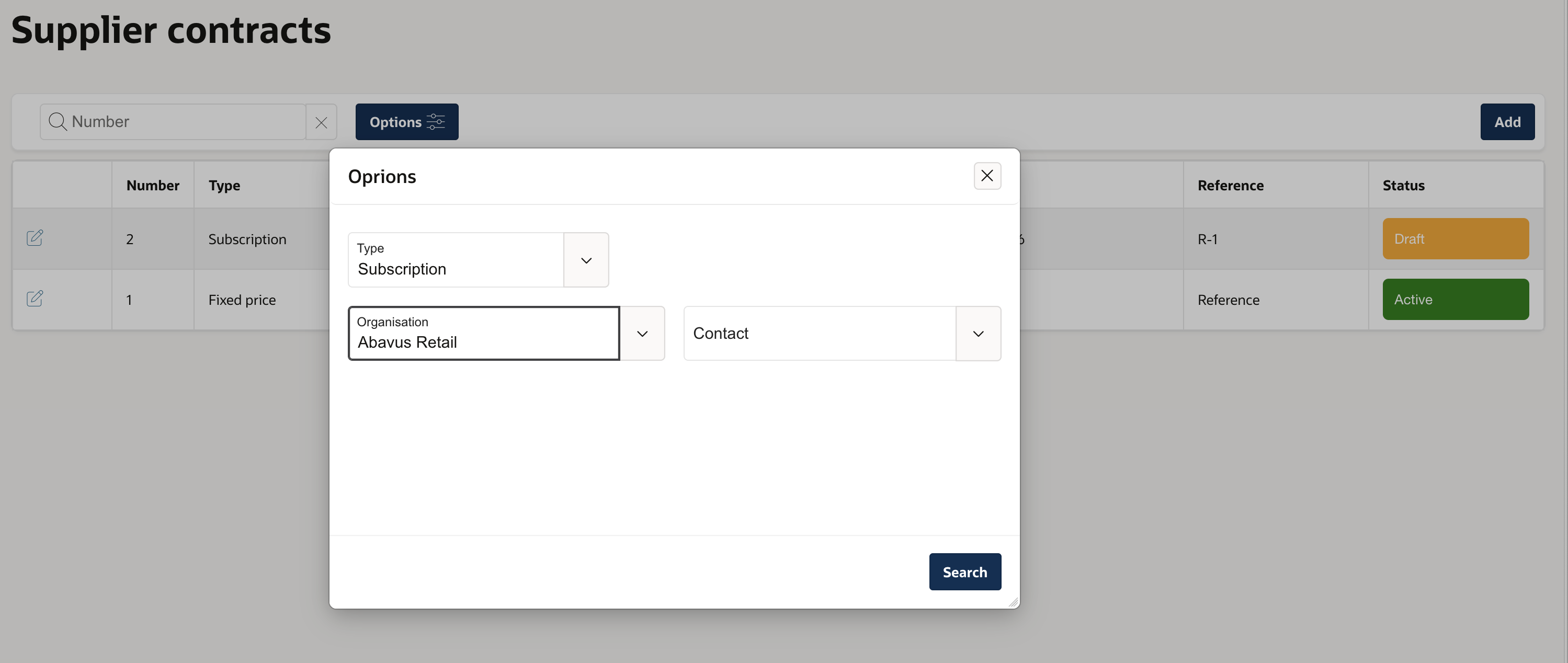
To view all contracts, go to the Supplier Contracts tab. You can search by contract number or use filters to narrow results by different parameters.
Was this article helpful?
That’s Great!
Thank you for your feedback
Sorry! We couldn't be helpful
Thank you for your feedback
Feedback sent
We appreciate your effort and will try to fix the article