Introduction
About this guide
This guide has been written to explain how to do the following:
- Configure Print Layouts
- Share a Service Request as a PDF attachment on an email via Action > Share
- Share a Service Request as a PDF attachment on an email automatically via Rules
- Printing a Service Request as a PDF via Action > Print
Manual Service Request Sharing
Configuring a ‘Service – Print Service Request’ Print Layout
Configuring a Print Layout in the way described below will allow you to be able to send emails that has a copy of the Service Request’s information attached as a PDF file via the ‘action > share’ option on a Service Request.
To start creating a print layout, go to Administration > Branding > Layout, and click ‘Add’.
Firstly, configure the required details for the layout making sure to select the type ‘Service’, the sub-type ‘Share service request’.
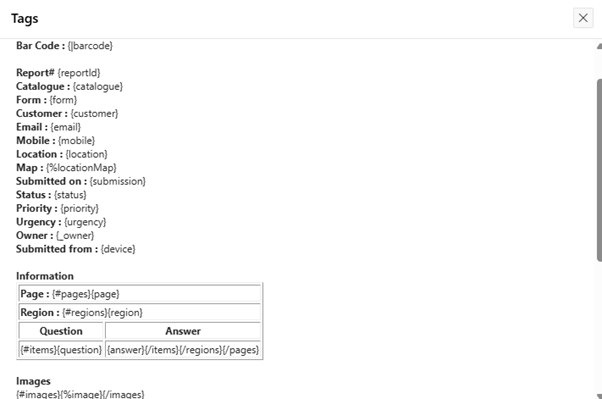
Set the ‘layout format’ to ‘docx’. Create a new Word document and use the tags from the ‘View’ menu on the right-hand side of the Print Layout menu to create a template document. This dictates what information is displayed on the output file:
Once your template file has been created, upload the template file to the Print Layout.
Then, set the output format as PDF. Only the layouts with sub-type as ‘Share service request’ will appear in the select list while sharing the SR as a PDF.
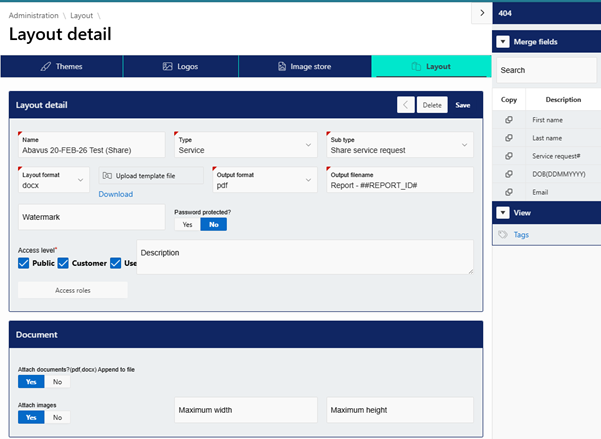
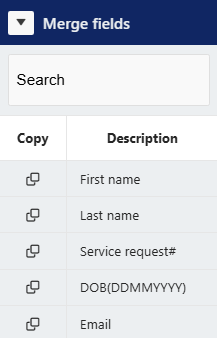
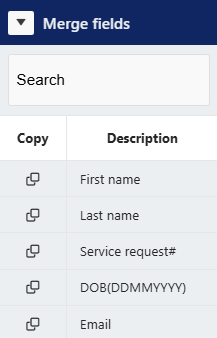
Set the Output filename. You can use tags from the ‘merge fields’ part of the right-hand side menu in this file name if required:
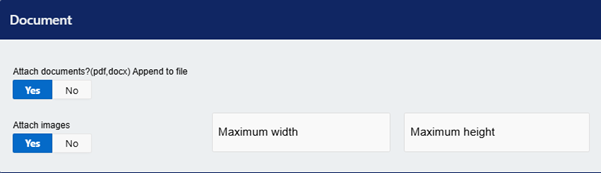
If you want to include attachments from the SR in the print layout, enable the ‘Attach Documents’ option. This will append the document to the bottom of the PDF. The same applies to the ‘attach images’ option.
After this, click ‘save’ to create the Print Layout.
Sharing the SR
To share the service request content, go to the Service Request.
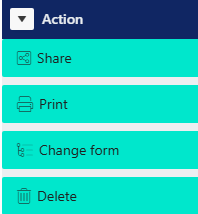
Once you are on the Service Request, click on ‘Share’ in the ‘action’ menu on the right-hand side:
Select the recipient from the list, then set the sending method to ‘Email’ and the Content to ‘Report content’.
Select ‘Yes’ to attach as PDF, then select the print layout you have configured:
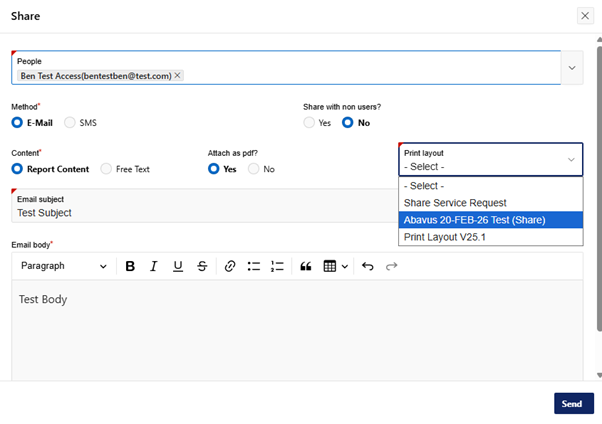
Then, enter the email subject and body as required and then click ‘Send’ at the bottom.
The recipient will receive the PDF file containing the report information as per the layout.
Printing Service Requests
Creating a ‘Service – Print Service Request’ Print Layout
A Print Layout can be configured to allow Service Requests to be printed into a file via > Print’, as well as for use in rule actions to send these printed Service Requests automatically.
To do this, a Print Layout must first be configured. To do this, go to Administration > Branding > Layouts, and click on ‘add’ on the top right:
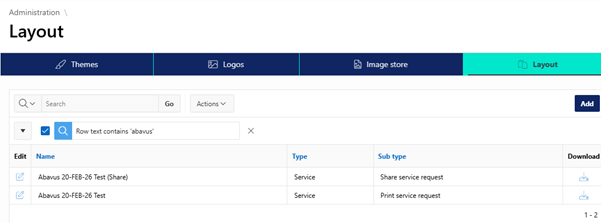
Name the print layout. Then, set the type and subtype to Service and Print Service Request. Only the layouts with sub-type as ‘Print Service Requests will appear in the select list when mapping the Print Layout to the Form.
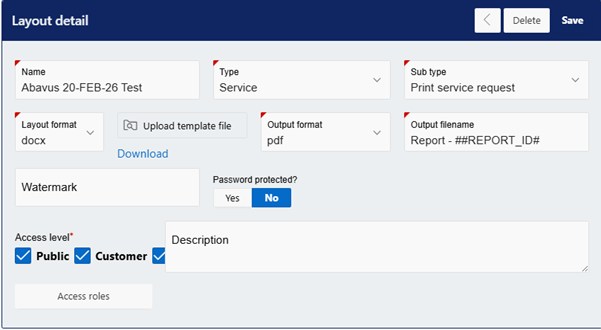
After this, set the Layout format to docx, and configure the template file. Use the tags found under the ‘View’ menu to dictate what information from the Service Request appears in the printed file:
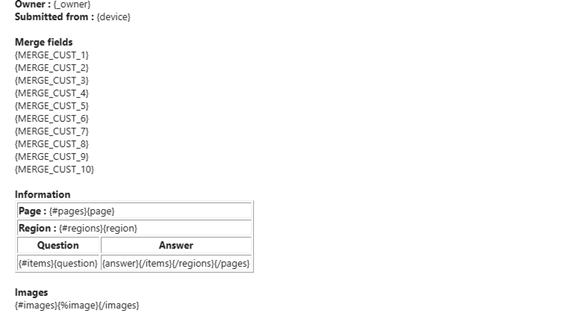
Set the Output filename. You can use tags from the ‘merge fields’ part of the right-hand side menu in this file name if required:
If you want documents attached to the Service Request to be appended to the PDF, click Yes on ‘attach documents. If you want to attach images to the PDF, click Yes on ‘attach images’
Once this Print Layout has been configured, you can Print the Service Request manually, and/or use Rule automation to send the Service Request as a PDF as emails.
Manual Service Request Printing
To manually print the Service Request, you must first map the Print Layout to the form.
Go to Administration > Service Request and Case > Forms Builder, and find the form of the Service Request you want to print.
Once you select the form, scroll down to the ‘Print Layout’ option, and select your Print Layout:
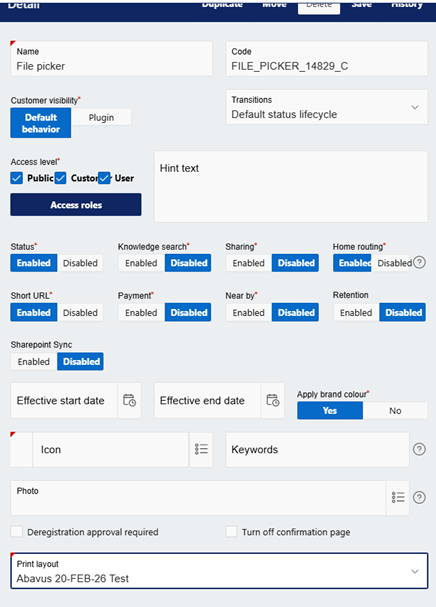
If no Print Layout is selected on the form, printing the Service Request will not work.
Once this has been configured, go to the Service Request you want to print, and click on ‘Print’ under the ‘Action’ menu:
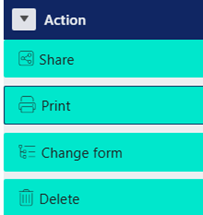
This will save the Service Request as a PDF file on your device. The Service Request will be formatted according to the template file on the Print Layout.
Automated Service Request Sharing
Using this Print Layout, it is possible to print these Service Requests and then send these files via email.
To do this, go to Administration > Service Request and Case > Rules.
Create or edit a rule that you wish to use to send the Service Request as a PDF. If you are unsure how to configure a rule, please view the following guide:
https://mycouncilservices.freshdesk.com/en/support/solutions/articles/101000576102-rules-user-guide
Configure a rule action, and set the action to one of the following, depending on who you want to sent the Service Request to:
- Notify Person
- Notify Owner
- Notify Submitter
Next, set the notification type to ‘E-Mail’. This will allow you to select ‘Service request content’ as the Content Type.
After this, enable ‘Attach PDF’ and select the layout you have configured:
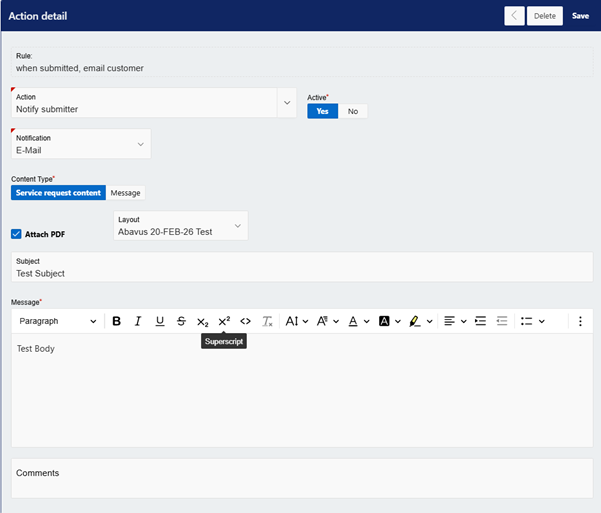
Write the Subject and Body of the email and click ‘Add’ or ‘Save’ at the top.
Then, save the rule.
Now, when the condition(s) of the rule is met, an email with the generated PDF of the Service Request will be sent to the recipient.
Was this article helpful?
That’s Great!
Thank you for your feedback
Sorry! We couldn't be helpful
Thank you for your feedback
Feedback sent
We appreciate your effort and will try to fix the article