Introduction
About this guide
This guide has been written to explain the local view page settings (My Account) on the customer portal, and how the customer can use these pages.
Some examples of what this menu can be composed of are the following:
- Account
- My Personal Information
- My Reports
- Draft Reports
Configuring the My Account Menu
You can configure a menu via Administration > Customer Portal > Menu > Menus
Here, create a menu. Configure a name, and a label.
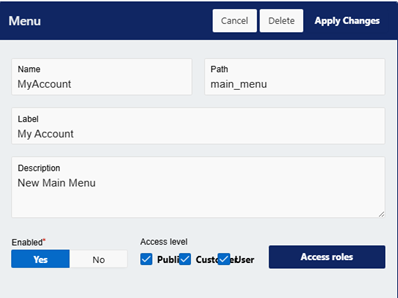
Next, select the items that you want to add in this menu. Select the type as ‘local view’ to reveal the local view settings, that have the following:
My Reports – This shows the customer what reports they have submitted
My Draft Reports – This reveals the draft reports that the customer has saved
My Personal Information – This shows the customer their account information
Accounts – A general page that shows all information
Consultations – Allows the customer to search for consultations
Save each item to create the options.
Mapping the Menu
Next, go to Administration > Customer Portal > Menus > Menu Mapping.
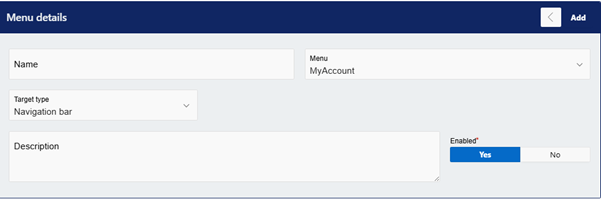
Click on ‘add’ and name the menu. Set the Meny to the menu that you have just created, and then select the following depending on where you want the menu to go:
Navigation Bar – This will display on the header of the home page:
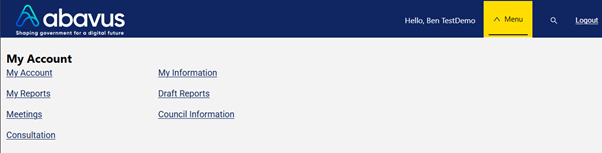
Home Page – This will display in the body of the home page in the following positions:
- Related Content (below the search bar)
- Search Region (reveals when clicking the search icon in the header)
- Services – Right Side (appears to the right of the configured Service)
Once configured, click ‘add’.
Using the Menu
Customer Experience
Now that the menu has been mapped, the customer will be able to use the menu from the home page of the customer portal, as long as customer access is granted to the menu and it’s items.
Account
Page Overview
When the Account menu item is clicked, the following page appears:
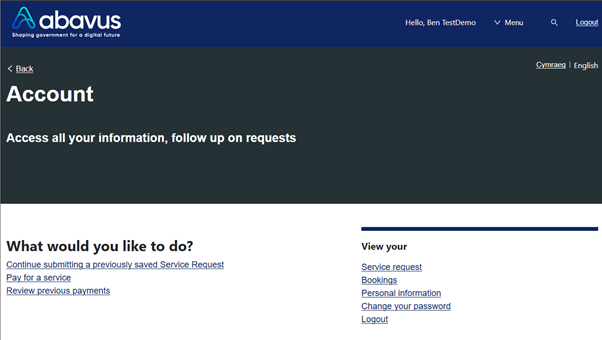
This page acts as a general page, harbouring the more commonly used features. The page allows customers to do the following:
Continue submitting a previously saved service request – This navigates the customer to the ‘Draft Service Request’ page, where they can access and continue draft requests.
Pay for a service – If there are any pending payments on any submitted requests, they can pay them here.
Review previous payments – Any previous payments attributed to the account will appear here.
A view menu appears to the right, allowing the customer to do the following:
- View Service Requests attributed to them; this takes them to the ‘My Reports’ page
- View Bookings attributed to them
- View their personal information; this takes them to the ‘My Personal Information’ page
- Change their password
- Logout
My Personal Information
Page Overview
This page acts as a way for customers to quickly view and edit their account information. This page can also be accessed via Account > View your personal information.
The following information is available for the customer to view / edit:
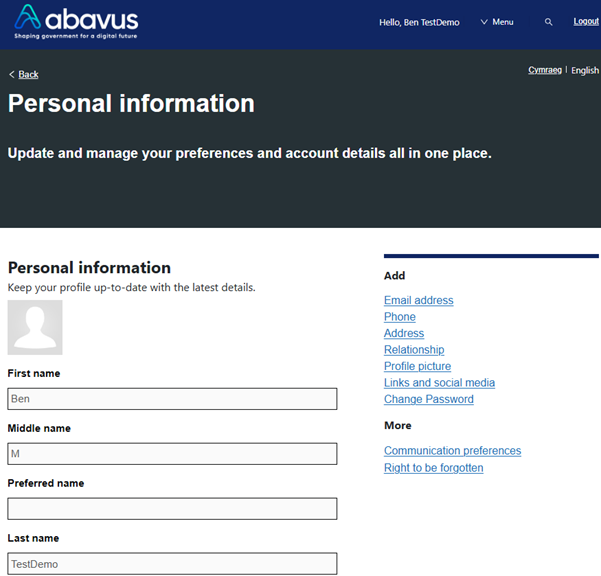
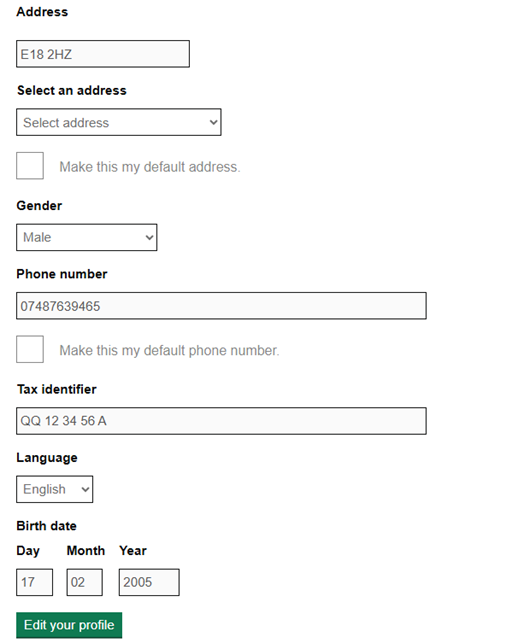
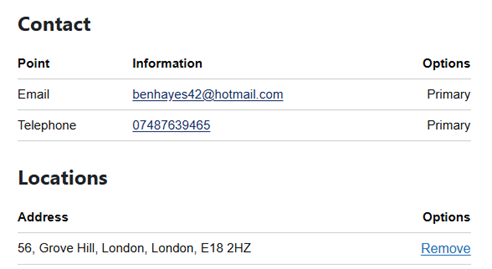
If the customer wishes to edit any details about their account, they can do so via the ‘Edit your Profile’ button.
Customers also have the option to add other account information, such as:
- Contact points, such as emails and phone numbers (multiple may be added)
- Addresses
- Relationships
- Profile Picture
- URLs and Social media handles
They can also do the following:
- Change their communication preferences and notify group subscriptions
- Right to be forgotten
- Change their password
My Reports
Page Overview
This page hosts information about all of the service requests that are attributed to the customer.
This information has been sorted into Open, In Progress, Resolved and Overdue SRs.
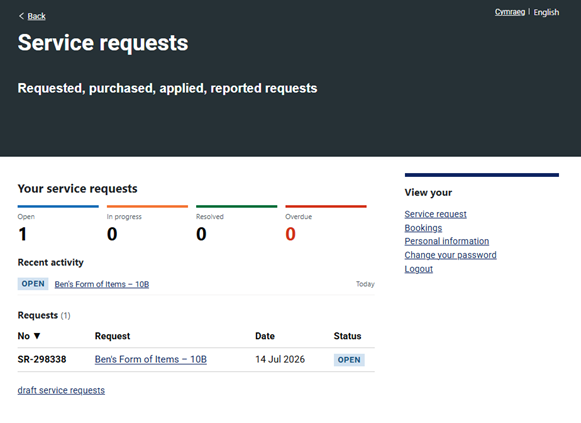
Open – Any SR that currently has a status with the ‘open’ status type
In progress - Any SR that currently has a status with the ‘In progress’ status type
Resolved – Any SR that has the ‘closed’ or ‘completed’ status type
Overdue – Any SRs with SLA configuration that have become overdue
SRs that have been recently updated will appear under the ‘recent activity’ region.
A list of Service Requests attributed to the customer will appear below this. Clicking on a request reveals more information about the request:
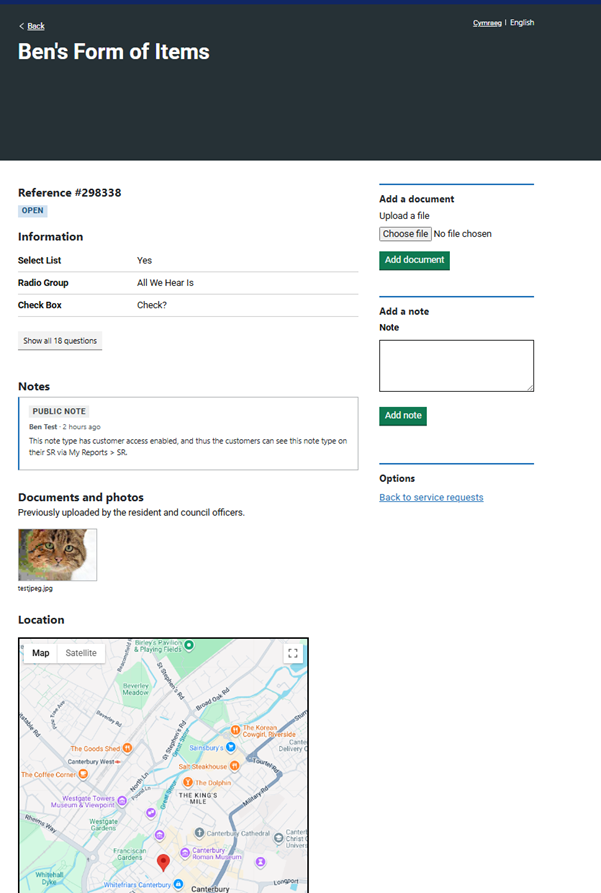
SR information appears below the SR number (reference). This information can be expanded with the ‘show all _ questions’ button.
Notes
Below this, notes with ‘customer’ access enabled on their note types will appear. This allows administrators to leave notes regarding the progress of the Service Request.
When an administrator adds a note for the customer, it is recommended that a rule with the following configuration be added so that the customer is also made aware via email:
Rule Option: Service – Note Added
Action: Notify Submitter (original SR submitter)
To the right, the ability for the customer to add a note to the Service Request exists. This allows for convenient communication between the administrator and the customer. For the customer-added note to be sent to the administrator via email, it is recommended that the following rule be configured:
Rule Option: Service – Note added
Action: Notify Person or Notify Owner (if SR ownership is used)
Below the Service Request notes, any documents / images attached to the request are displayed.
Below this, if a primary location picker or advanced postcode picker is answered on the request, the location will display.
To the right, the ability for the customer to add documents to the request exists, allowing customers to upload additional evidence if required.
Draft Reports
Page Overview
The Draft Reports page provides the customer with a view of all of the requests that they have saved but not submitted.
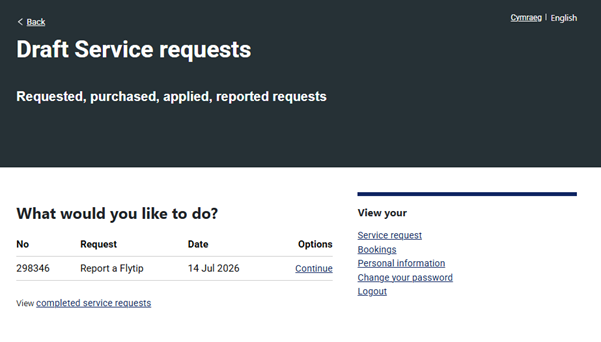
By clicking ‘Continue’, the customer can finish and submit the SR.
Consultations
Page Overview
This page allows customers to search for public consultations that have been published by the council.
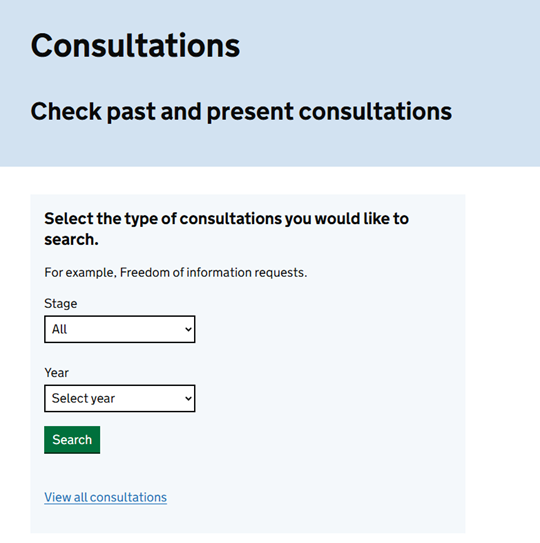
These consultations can be configured on the Consultations module. For more information on this, please visit the guide below:
https://mycouncilservices.freshdesk.com/en/support/solutions/articles/101000574266-consultations-user-guide
Was this article helpful?
That’s Great!
Thank you for your feedback
Sorry! We couldn't be helpful
Thank you for your feedback
Feedback sent
We appreciate your effort and will try to fix the article