Introduction
About this guide
This document explains the process that logged in submitters can expect from Draft Service Requests when they click ‘save and continue later’, saving the form as a Draft without submitting.
Draft Save Process
Save Confirmation Page
Once the SR has been saved as a draft, the following page will appear, and provide the following options for the submitter:
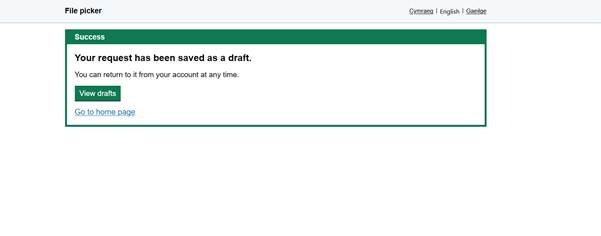
View drafts - Selecting ‘View drafts’ will take the user to their saved draft requests. If the user is already logged in, drafts should be shown directly.
If the session has expired or the user is not logged in, they should be prompted to log in first and then be able to see their drafts.
Go to home page - Selecting ‘Go to home page’ should redirect the user to the home page URL set in the form configuration.
Emails
When the user saves a draft, an email notification will be sent to confirm as a confirmation. The purpose is to give the customer reassurance and a reminder that the form has not yet been submitted. An example of this is as shown below:
If the user is already logged in, a link on the email can take the user to the Draft Service Request list for the user.
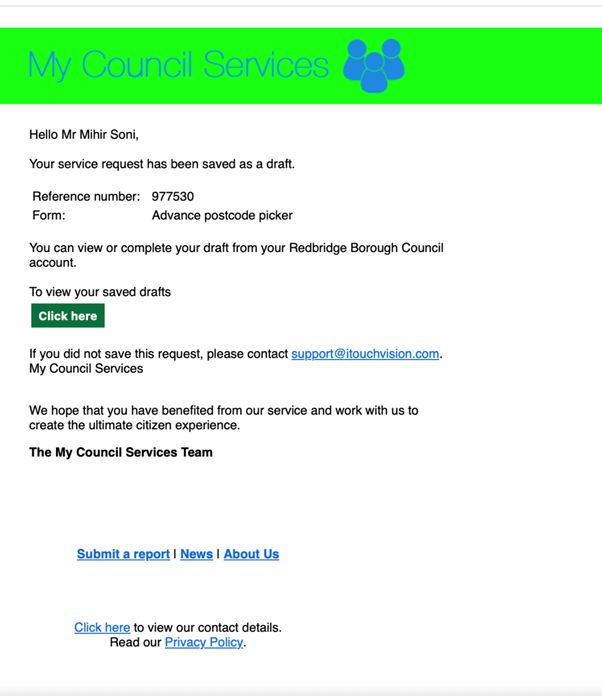
From selecting the ‘click here’ button, the user can return to their account and review or submit the saved draft.
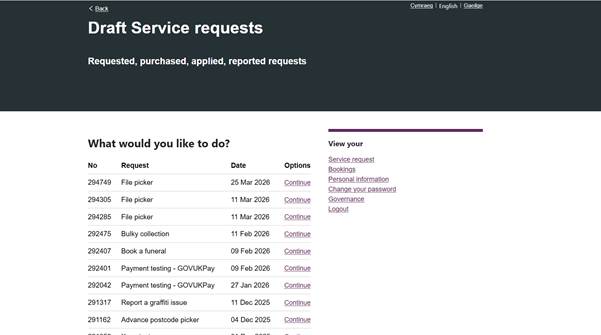
Other ways that saved drafts can also be accessed via Main Menu > Menu > My Reports > View Draft Service Requests
Was this article helpful?
That’s Great!
Thank you for your feedback
Sorry! We couldn't be helpful
Thank you for your feedback
Feedback sent
We appreciate your effort and will try to fix the article